 Manager
Manager
Manager is a native macOS app that brings together the settings macOS keeps out of System Settings and the maintenance tasks that otherwise need the Terminal. Every setting shows the value the Mac has now, whether it is still the macOS default, what changing it sets off and the equivalent Terminal command. Changes apply to the Mac as they are made, and every one can go back to the macOS default.
Until version 1.3.3 the app was called Mac Utils, and its command macutils.
Requirements and installation
| Requirement | |
|---|---|
| System | macOS 13 Ventura or later |
| Processor | Apple silicon (M1 or later) |
| Account | None |
| Price | Free |
- Download the installer (
Manager-<version>.pkg) from leonardoaguiar.com/manager. - Open the
.pkgand follow the screens (Welcome, Read Me, License, Install). The app goes to/Applications/Manager.app. - Manager opens by itself when the installation finishes.
Note: Manager is not notarized by Apple yet. If macOS blocks the installer, open System Settings › Privacy & Security, find the message about it and click Open Anyway. This is needed only for the first installation.
When updating over an existing copy, your settings and log are kept. If the app is open, the installer closes it and opens it again at the end.
Where data lives
| What | Where |
|---|---|
| Manager's own settings, profiles, triggers, window layouts, key remapping rules and the change log | The app's preferences, ~/Library/Preferences/com.macutils.app.plist |
| Generated wallpaper images (solid color) | ~/Library/Application Support/Mac Utils/Wallpapers |
| The helper (optional) | /Library/PrivilegedHelperTools/com.macutils.helper and /Library/LaunchDaemons/com.macutils.helper.plist |
| Scheduled maintenance scripts (optional) | /Library/LaunchDaemons/com.macutils.maintenance.plist |
The manager command link (optional) | /usr/local/bin/manager |
The settings you change on the Mac are written where macOS keeps them, not in Manager's data. Erasing Manager's data or removing the app leaves them as they are.
Uninstall
Manager has no uninstaller of its own. To remove it:
- Optionally, put the Mac's settings back first: Settings › Data › Restore Defaults….
- If you installed the helper, remove it in Settings › Applying › Manager helper › Remove….
- If you turned on Tools › Schedules › Run maintenance scripts or Turn on and off on a schedule, turn them off; both keep running without the app.
- Quit Manager (
⌘Q) and drag it from Applications to the Trash. - If you installed the command-line tool, delete the link
/usr/local/bin/manager.
Getting started
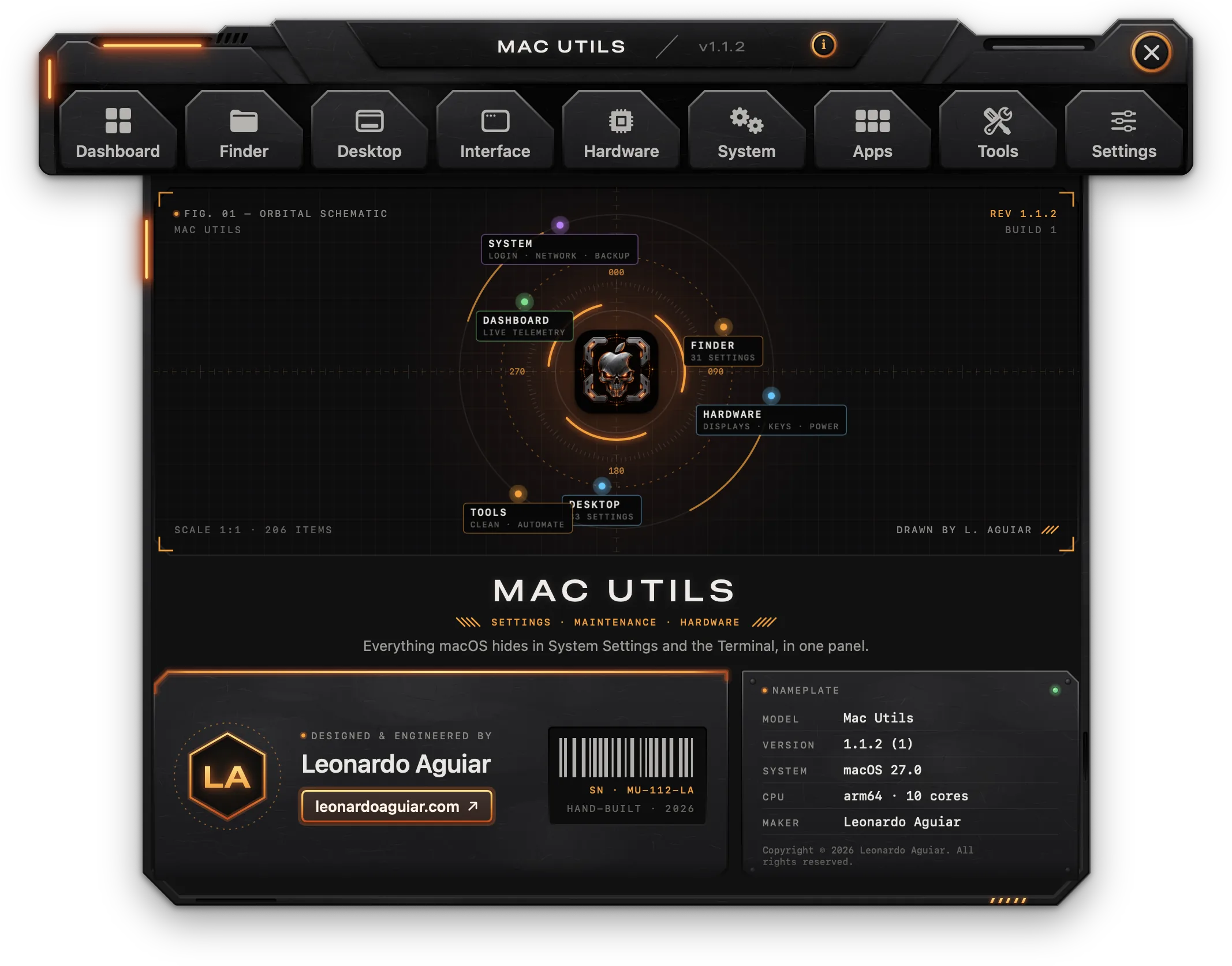
First launch
Manager opens with just the bar, every tab closed: click a tab to open its page, or search. On launch, and each time the window or a tab opens, it reads every setting from the Mac, so changes made in System Settings or the Terminal show up.
Manager is a regular app: it has a Dock icon and appears in ⌘Tab. Only one copy runs at a time; opening it again (from the Dock, Finder or Spotlight) brings the window forward.
Permissions
Nothing is asked up front. A permission is requested only when a feature that needs it is used, and Settings › Permissions lists all of them with why each is needed and an Allow… button.
| Permission | Used for |
|---|---|
| Full Disk Access | Changing Safari and Mail settings, some accessibility settings, cleaning system caches, emptying the Trash and showing which apps can use the camera, microphone and files (System › App Permissions) |
| Accessibility | Window snapping shortcuts, window layouts, key remapping, smooth scrolling and the extra mouse buttons |
| Screen Recording | Only the floating mirror window (Hardware › Displays) |
| Bluetooth | Connecting and disconnecting paired devices (Hardware › Bluetooth) |
| Location | Only showing the Wi-Fi network's name, channel and signal (System › Wi-Fi); macOS treats a network name as location data |
| Notifications | The alert when a new launch agent or daemon appears, and the steps of battery calibration |
| Administrator password | Settings and actions marked Admin, and reading the background items. Asked for by macOS itself, once per batch, or not at all with the helper |
When a change fails because a permission is missing, its row shows the reason in red with an Allow… button that opens the right pane of System Settings.
The window
The window is a metal bar with nine tabs: Dashboard, Finder, Desktop, Interface, Hardware, System, Apps, Tools and Settings. It opens with every tab closed; each tab's page slides down from the bar when clicked, and clicking the open tab folds it away.
- The title plate shows the name and version; the i button next to it opens the About page.
- The Search slot on the right of the bar (
⌘F) opens the search page (see Search). - The round X button (
⌘W) closes the window. Without the menu bar icon, closing the window quits Manager, like⌘Q. With the menu bar icon on, Manager keeps running in the menu bar, out of the Dock and⌘Tab. - The menus at the top of the screen are the app menu - About Manager, Documentation, Check for Updates…, Stack Windows (see With the other Mac apps), Report a Bug… and Quit Manager (
⌘Q) - and Help, with Manager Documentation, Changelog and Report a Bug….
Search
The Search slot on the bar, or ⌘F anywhere in the window, opens a page with one field over everything in Manager: every setting and action in every tab (the panels' own included), each tab's groups, the Dashboard's sections, the Settings rows, and the help pages and actions (About, Documentation, Changelog, Report a Bug, Check for Updates). It matches names, descriptions and keywords, ignoring case and accents, and lists the best matches first, each with the tab and group it lives in.
With the field empty, the page lists everything, tab by tab. ↑ and ↓ move through the results, ↩ opens the one picked (a click does too) and Esc clears the field, then closes the page. Opening a result opens its tab on its group and lights the row for a moment; actions such as Check for Updates run at once. ⌘F while the page is open puts the cursor back in the field.
Menu bar icon
The menu bar icon is off by default. Turn it on in Settings › Menu Bar › Show icon in the menu bar. Clicking it opens a panel on the system's glass; a click outside it or Esc closes it. The panel shows:
- Header: the state (keeping awake and until when, the battery's charge), the version, and three buttons: the window (Open Manager), the pin (the pinned items in Settings) and power (Quit Manager).
- Display (or Displays): for each display, its name, resolution and refresh rate, a menu to change the resolution, a brightness slider (through DDC on external displays) and, where the display has them, True Tone, HDR and Extra Bright.
- Quick switches: Dark Mode, Night Shift, Hide Desktop (all desktop icons), Hide Dock (hide and show it automatically), Hidden Files, Low Power, Stage Manager and Reduce Motion. A lit tile is on; a click flips it.
- Keep awake: the cup starts or stops it; 15m, 1h, 2h, 4h and ∞ start it for that long; the ring and the line show the time left. The display button keeps the display on too, or lets it go dark.
- Battery (on Macs with one): the charge, how long it lasts, and Limit (80 to 95, or Off) with Top Up to charge to 100% once.
- Bluetooth: the paired devices, connected first; a click connects or disconnects one.
- Profiles & layouts (when there are any): apply a profile, or restore a window layout.
- Actions: Lock Screen, Display Sleep, Show Desktop, Eject All, Flush DNS, Restart Finder, Restart Dock and Free Memory.
- Pinned: the settings and actions you pin in Settings › Menu Bar (Pin to the Panel): switches show On or Off, choices open their options, actions run (those that delete something ask first).
- Footer: tiles to Dashboard, Finder, Desktop, Hardware and Tools.
With the icon on and Launch at login on, a login launch starts in the menu bar without opening the window.
Pages and groups
The seven catalog tabs (Finder to Tools) have a Groups sidebar on the left, with how many settings the tab has and how many are changed. Each group opens its own page. ⌃⌘S hides and shows the sidebar.
Setting rows
Each setting is one row:
- Lamp: lit orange when the value differs from the macOS default; for actions, lit green once the action has run.
- Name and markers (see below) and a description of what it does.
- Preview: a small live drawing of what the value does (Finder windows, the Dock, the menu bar, dialogs, timings played at their speed, keys, the mouse, displays, the battery and more). It follows the control as it moves. Turn previews off in Settings › Applying › Show previews.
- Control: a switch, a choice, a slider, a stepper, a text field, a folder (Choose…) or an action button.
- On hover: a code button (
</>) shows the Terminal command for the current value, with Copy; a curved-arrow button restores the macOS default (the default is shown in its tooltip). - Right-click: Copy Command and Restore macOS Default.
Settings that have no macOS default of their own (a display's resolution or brightness, the computer name, DNS servers, the default apps) never count as changed.
Markers
| Marker | Meaning |
|---|---|
| Restarts Finder | The Finder restarts for the change to take effect; Finder windows close and reopen |
| Restarts Dock | The Dock restarts for the change to take effect |
| Restarts menu bar | The menu bar restarts; its icons go away for a moment |
| Admin | Asks for the Mac's administrator password |
| Log out | Takes effect at the next login |
| Restart | Takes effect after the Mac restarts |
| Full Disk Access | Needs Full Disk Access for Manager |
| Background | Done by Manager itself while it is running |
| Experimental | macOS has no public setting for this |
| Caution | Lowers a system protection or isn't simple to undo |
| May do nothing | Worked on earlier versions of macOS and may do nothing on this one |
| Quit App | The named app has to be closed; Manager quits it and opens it again |
Applying changes
There is no Apply button. A change goes to the Mac right after it is made:
- A slider applies when it is let go; nothing applies while the mouse button is held.
- Several changes made in a row go in one batch: one restart of the Finder, Dock or menu bar, and one password prompt for all Admin changes (none with the helper).
- While a change is on its way, the row shows APPLYING.
- A batch that takes a while shows a bar at the bottom of the page with Applying n of *total* and a progress bar. When it ends, the bar says how many changes were applied, what failed and why, what was restarted, or what takes effect at the next login. If Restart the Finder, Dock and menu bar for me is off, it offers Restart Now.
- A change that fails keeps the Mac's current value and shows Not applied: with the reason under the row.
Actions
Actions are buttons that do something once. While one runs, its button shows Running…, then Done or Failed. Actions that delete something ask for confirmation with Cancel and Confirm; actions that work on a file open a file chooser first. Under the row, Last run shows when it ran and what it did, with Show Output for tools that print something.
What Manager does itself
Settings marked Background (key remapping, window snapping and layouts, the mouse extras, the Dock following the pointer, wallpaper rotation, the battery's sailing and heat protection, the virtual display, triggers and scheduled cleanup) are carried out by Manager, so they work only while it is running. When Manager quits, the keyboard goes back to its own keys and the battery to the charge limit set.
Dashboard
Status
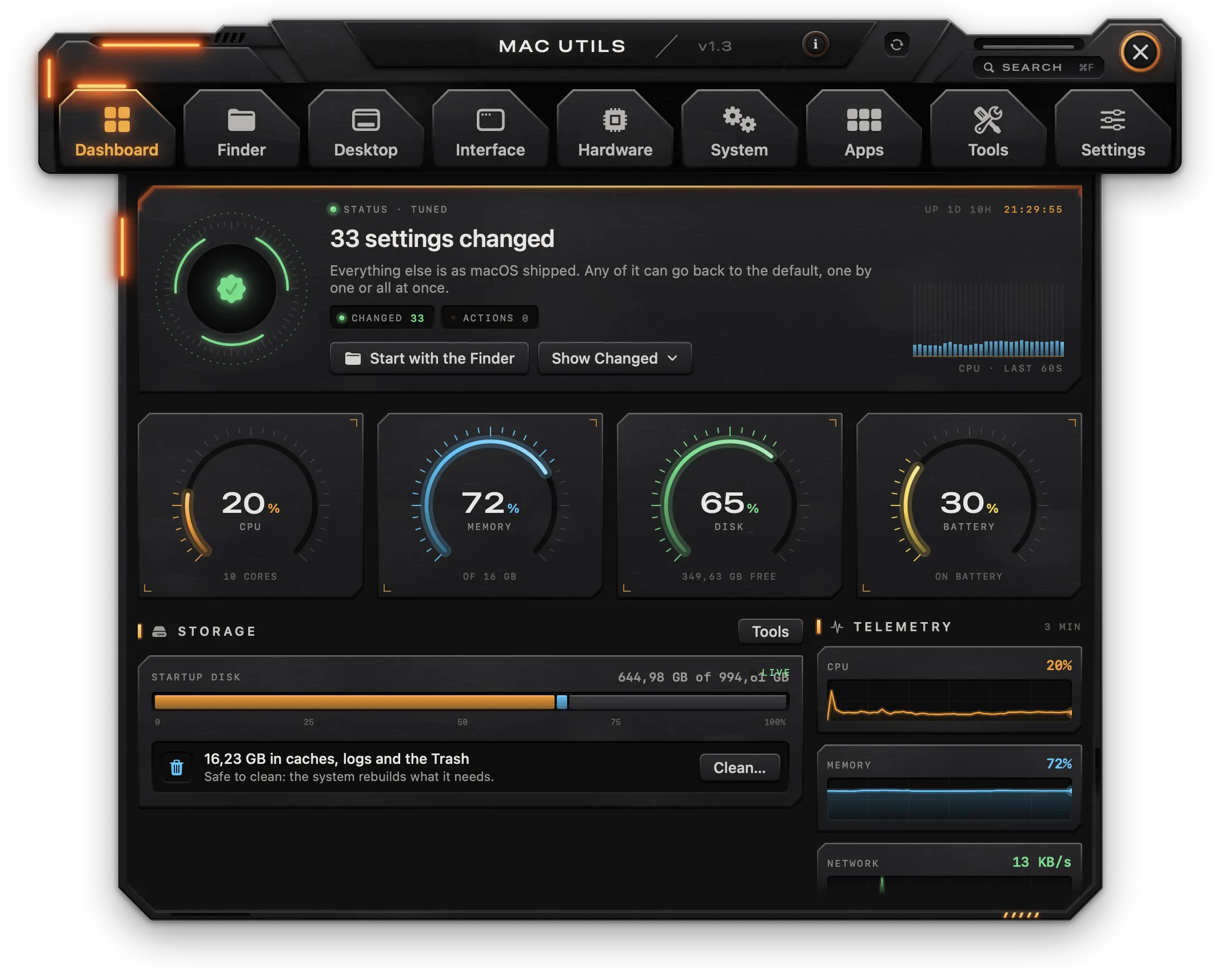
- Status · tuned with the number of settings changed, or Status · factory defaults when everything is at the macOS default.
- Changed and Actions readouts: settings changed from the default and actions run.
- Start with the Finder opens the Finder tab.
- Show Changed lists every changed setting with its value; clicking one jumps to it. Restore All Defaults… at the bottom of that list sets every changed setting back to the macOS default.
- A live clock with the Mac's uptime (Up) and a CPU strip of the last seconds.
Instruments
- Dials for CPU (with the number of cores), Memory, Disk (free space) and Battery (charging, on adapter or on battery). Macs without a battery show Network instead.
- Storage: the startup disk's use and how much is in caches, logs and the Trash, with Clean… (opens Tools › Cleanup) and Tools.
- Telemetry: CPU, memory and network graphs of the last 3 minutes.
Quick actions
| Tile | Does |
|---|---|
| Flush DNS Cache | Flushes the DNS cache (Admin) |
| Restart Finder | Quits and reopens the Finder |
| Restart Dock | Quits and reopens the Dock and Mission Control |
| Rebuild “Open With” | Rebuilds Launch Services, removing duplicates from “Open With” menus |
Below them, the Keep Awake card starts and stops keeping the Mac awake (see Hardware › Keep Awake), and Profiles applies a profile in one click, with Manage… to open Tools › Profiles.
By Area and Change Log
- By Area shows how many settings are changed in each tab; clicking a tab opens it.
- Change Log shows a 14-day timeline of changes and the latest entries. Every setting applied and every action run is logged with its date. Show All opens the full log (the last 500 entries); clicking an entry jumps to its setting.
Finder
Files & Folders
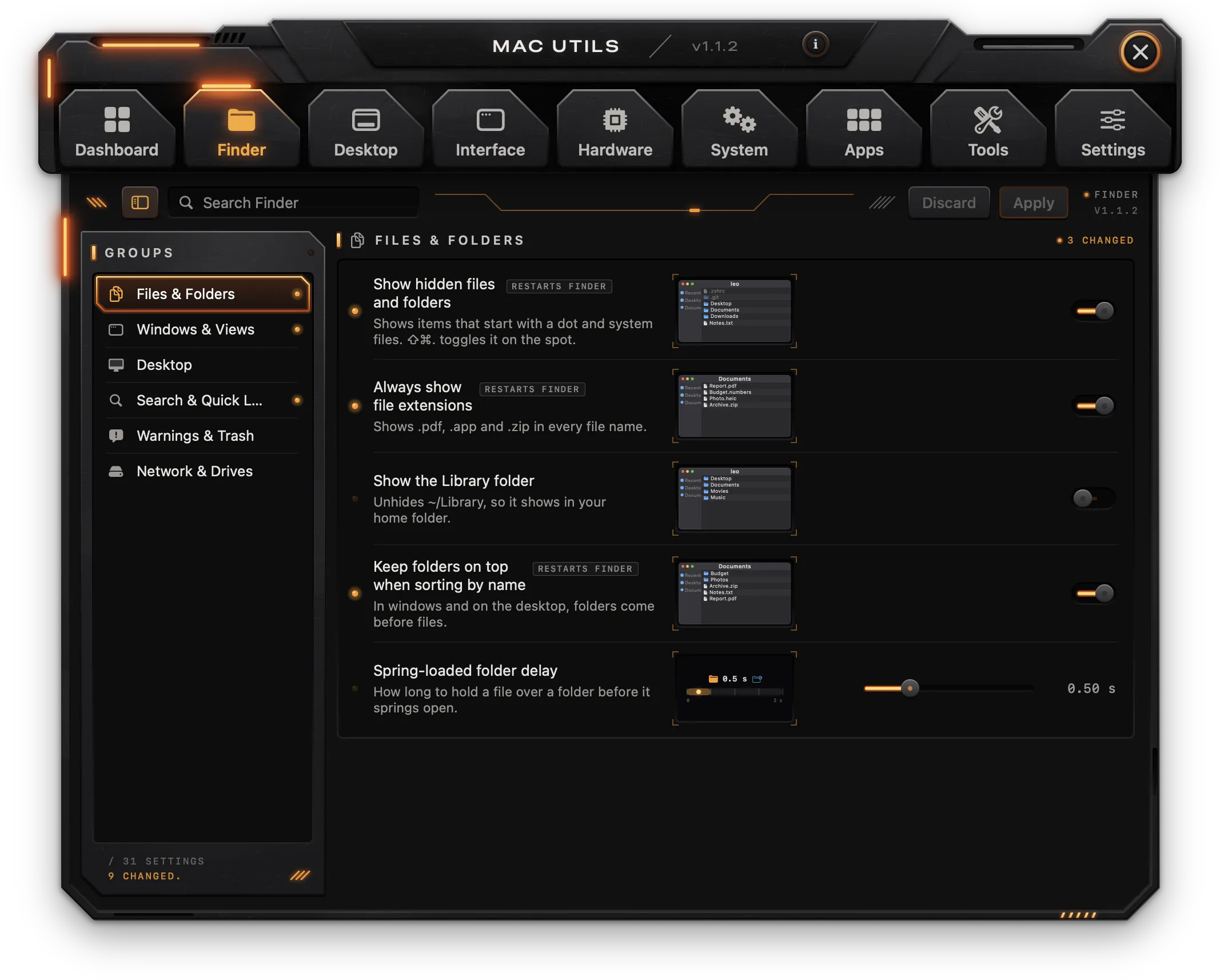
| Setting | What it does | Notes |
|---|---|---|
| Show hidden files and folders | Shows items that start with a dot and system files (⇧⌘. toggles it in the Finder) | Restarts Finder |
| Always show file extensions | Shows .pdf, .app and .zip in every file name | Restarts Finder |
| Show the Library folder | Unhides ~/Library | |
| Keep folders on top when sorting by name | Folders come before files, in windows and on the desktop | Restarts Finder |
| Spring-loaded folder delay | How long to hold a file over a folder before it opens, 0-2 s |
Windows & Views
| Setting | What it does | Notes |
|---|---|---|
| Default view style | Icons, List, Columns or Gallery, for folders without a view of their own | Restarts Finder |
| New windows show | Recents, Desktop, Documents, Home, iCloud Drive or Other folder… | Restarts Finder |
| Other folder for new windows | The folder used with Other folder… | Restarts Finder |
| ⌘-double-click opens folders in | New tab or New window | |
| Show the path bar | The folders above the current one, along the bottom | Restarts Finder |
| Show the status bar | Item count and free space | Restarts Finder |
| Use the default view style in every folder | Action (Apply…): deletes the .DS_Store view files in your home folder so every folder follows the default view | Restarts Finder, Caution |
| Full path in the title bar | Shows the full POSIX path as the window title | Restarts Finder |
| Always show the proxy icon in the title | The document icon shows without hovering | Restarts Finder |
| Toolbar title hover delay | How long the pointer rests on the toolbar before the full title shows, 0-1 s | |
| Sidebar icon size | Small, Medium or Large, in the Finder and apps with the same sidebar | Restarts Finder |
| Turn off window and Get Info animations | Windows and panels appear at once | Restarts Finder |
| Add “Quit Finder” to the Finder menu | ⌘Q quits the Finder; the desktop goes away until it opens again | Restarts Finder |
Desktop
| Setting | What it does | Notes |
|---|---|---|
| Hide all desktop icons | Files stay in the Desktop folder but stop showing on screen | Restarts Finder |
| Internal disks on the desktop | The Mac's own disks | Restarts Finder |
| External disks on the desktop | Drives plugged into the Mac | Restarts Finder |
| Connected servers on the desktop | Mounted network shares | Restarts Finder |
| CDs, DVDs and iPods on the desktop | Removable media | Restarts Finder |
| Snap desktop icons to the grid | Icons land on the grid when dropped | Restarts Finder |
| Show item info under icons | Image dimensions and folder item counts | Restarts Finder |
Search & Quick Look
| Setting | What it does | Notes |
|---|---|---|
| Default search scope | This Mac, Current folder or Last search | Restarts Finder |
| Quick Look animation duration | How long the preview takes to open and close, 0-1 s |
Warnings & Trash
| Setting | What it does | Notes |
|---|---|---|
| Don't warn when changing an extension | Renaming an extension no longer asks for confirmation | Restarts Finder |
| Don't warn before emptying the Trash | The Trash empties without the question | Restarts Finder |
Network & Drives
| Setting | What it does | Notes |
|---|---|---|
| No .DS_Store files on network shares | Keeps SMB shares free of the Finder's hidden files | Log out |
| No .DS_Store files on USB and external drives | The same for external drives | Log out |
Desktop
Dock
Dock Size & Position
| Setting | What it does | Notes |
|---|---|---|
| Icon size | 16-128 px | Restarts Dock |
| Position on screen | Left, Bottom or Right | Restarts Dock |
| Show the Dock on the display with the pointer | The Dock moves to the display the pointer is on | Experimental, Background |
Auto-Hide
| Setting | What it does | Notes |
|---|---|---|
| Automatically hide and show the Dock | The Dock shows only when the pointer reaches the edge | Restarts Dock |
| Delay before it shows | 0-2 s; zero is instant | Restarts Dock |
| Animation speed | Multiplier for the slide, 0-3×; lower is faster | Restarts Dock |
| Dim the icons of hidden apps | Apps hidden with ⌘H look translucent | Restarts Dock |
Contents
| Setting | What it does | Notes |
|---|---|---|
| Show only open apps | Hides pinned apps | Restarts Dock |
| Hide the recent apps section | Removes the recent apps area | Restarts Dock |
| Add a spacer between apps | Action (Add): an empty tile you can drag | Restarts Dock |
| Add a small spacer | Action (Add): half a tile | Restarts Dock |
| Add a spacer on the folders side | Action (Add): a gap right of the divider | Restarts Dock |
To remove a spacer, drag it out of the Dock.
Animation & Magnification
| Setting | What it does | Notes |
|---|---|---|
| Don't bounce icons when apps open | The icon stays still while its app launches | Restarts Dock |
| Minimize effect | Genie, Scale or Suck (Suck has no option in System Settings) | Restarts Dock |
| Magnification | Icons grow under the pointer | Restarts Dock |
| Magnified size | 16-512 px (System Settings stops at 128) | Restarts Dock |
Locks
| Setting | What it does | Notes |
|---|---|---|
| Lock the size | Dragging the divider no longer resizes the Dock | Restarts Dock |
| Lock the position | The Dock stays on its side | Restarts Dock |
| Lock the contents | Apps can't be dragged in or out | Restarts Dock |
Icon Actions
| Setting | What it does | Notes |
|---|---|---|
| Scroll over an icon to see the app's windows | Scrolling up over an app opens App Exposé for it | Restarts Dock |
| Spring loading on every item | Holding a file over any app brings its window forward | Restarts Dock |
Mission Control and Spaces
Mission Control
| Setting | What it does | Notes |
|---|---|---|
| Delay before switching Spaces at the edge | How long a window dragged to the edge waits, 0-2 s | Restarts Dock |
| Group windows by application | Each app's windows stay together | Restarts Dock |
Spaces
| Setting | What it does | Notes |
|---|---|---|
| Switch to a Space with the app's open windows | Switching apps goes to the Space with its window | |
| Displays have separate Spaces | Each display gets its own Spaces and menu bar | Log out |
| Don't rearrange Spaces by most recent use | Spaces stay in the order you put them in | Restarts Dock |
Hot Corners
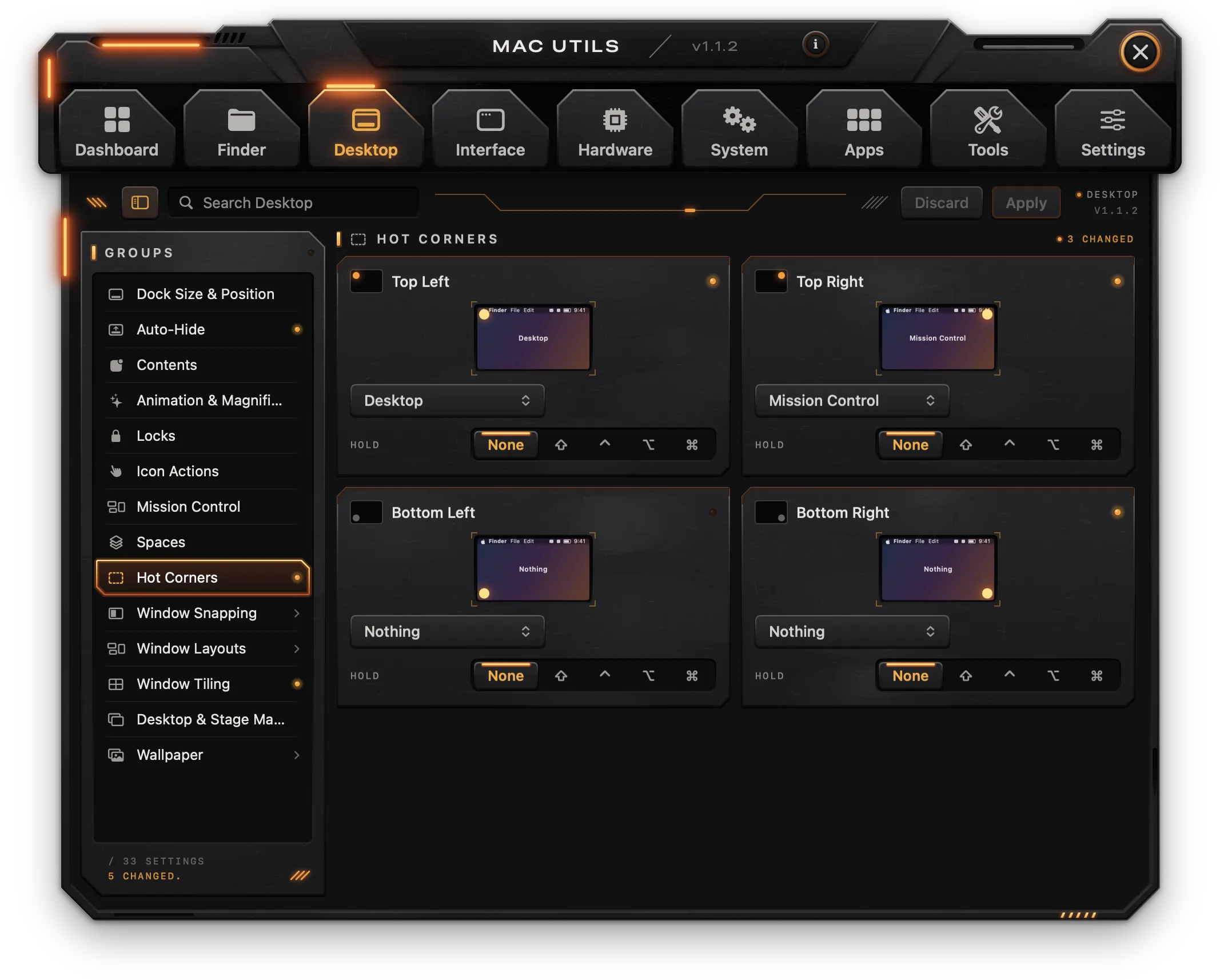
Four cards, one per corner (Top Left, Top Right, Bottom Left, Bottom Right). Each has:
- An action: Nothing, Mission Control, Application Windows, Desktop, Notification Center, Launchpad, Quick Note, Start Screen Saver, Disable Screen Saver, Put Display to Sleep or Lock Screen.
- Hold: a key that must be held for the corner to fire (None,
⇧,⌃,⌥or⌘).
Changes restart the Dock.
Window Snapping
Keyboard shortcuts that move and resize the front window. They work system-wide and need Accessibility.
- Window snapping shortcuts turns them on (Background).
- Gap between snapped windows: 0-40 px between windows and around the screen's edges.
- Each position has a recordable shortcut: click the field and press the keys. The X button removes the shortcut; the curved arrow restores the default one.
| Position | Default shortcut |
|---|---|
| Left Half | ⌃⌥← |
| Right Half | ⌃⌥→ |
| Top Half | ⌃⌥↑ |
| Bottom Half | ⌃⌥↓ |
| Left Third | ⌃⌥D |
| Center Third | ⌃⌥F |
| Right Third | ⌃⌥G |
| Left Two Thirds | ⌃⌥E |
| Right Two Thirds | ⌃⌥T |
| Top Left Quarter | ⌃⌥U |
| Top Right Quarter | ⌃⌥I |
| Bottom Left Quarter | ⌃⌥J |
| Bottom Right Quarter | ⌃⌥K |
| Fill the Screen | ⌃⌥Return |
| Center | ⌃⌥C |
| Move to Next Display | ⌃⌥⌘→ |
| Move to Previous Display | ⌃⌥⌘← |
Window Layouts
Saves where every window is, per set of connected displays, and puts them back.
- Connected now shows the displays connected and how many windows are on screen.
- Save Current Layout asks for a name and saves the position of every window.
- For these displays lists the layouts saved for the current set of displays; layouts for other sets are listed below by their displays. Each row shows its windows, apps and date, with Restore (only when its displays are connected) and a trash button (click Delete to confirm).
- Restore layouts when displays reconnect: when a saved set of displays comes back, its windows go back where they were (Background).
Moving windows needs Accessibility.
Window Tiling
macOS's own tiling, from macOS 15.
| Setting | What it does |
|---|---|
| Drag windows to screen edges to tile | Dropping a window on the left or right edge fills that half |
| Drag windows to the menu bar to fill the screen | Dropping a window on the menu bar fills the screen |
| Hold ⌥ while dragging to tile | Shows where the window will go while ⌥ is held |
| Margins between tiled windows | A gap between and around tiled windows |
Desktop & Stage Manager
| Setting | What it does |
|---|---|
| Click wallpaper to reveal the desktop | Clicking the wallpaper moves every window aside |
| Hide widgets on the desktop | Desktop widgets stop showing |
| Stage Manager | Keeps the current app in the middle and the others in a strip at the side |
Wallpaper
- One card per display with its current picture and Choose… to pick another.
- A different wallpaper on each Space (Experimental): pictures chosen here apply to the current Space only.
- Rotate pictures from a folder, Rotation folder (default
~/Pictures) and Change picture every (5 min, 15 min, Hour or Day). - Solid color instead of a picture and Wallpaper color (a color well): fills every display with one color.
Rotation and the solid color are done by Manager while it runs.
Interface
Appearance
| Setting | What it does | Notes |
|---|---|---|
| Dark Mode | Dark windows, menus and Dock across the system, switched at once |
Windows
| Setting | What it does | Notes |
|---|---|---|
| Prefer tabs when opening documents | Never, In full screen or Always | |
| Double-click a title bar to | Zoom, Minimize or Do nothing | |
| Show scroll bars | Automatic, When scrolling or Always | |
| Click in the scroll bar to jump there | Jumps to the spot instead of a page at a time | |
| Window resize and sheet speed | Animation time of resizing and sheets, 0-0.5 s | |
| Window corner radius | How round window corners are, 0-30 pt; apps opened after the change use it | Experimental |
| Turn off window opening animations | New windows appear at once | |
| Turn off the focus ring animation | The focus ring appears without pulsing |
Apps & Documents
| Setting | What it does |
|---|---|
| Reopen windows when an app opens again | Off, apps open without last time's windows |
| Ask to keep changes when closing documents | Asks whether to save instead of saving on its own |
| Turn off automatic termination of idle apps | Stops macOS from quitting apps with no open windows |
| Save to disk by default, not to iCloud | New documents suggest a folder on the Mac |
Save & Print
| Setting | What it does |
|---|---|
| Always expand the Save panel | Opens with the folder browser |
| Always expand the Print panel | Opens with all the printer's options |
| Quit the printer app when printing finishes | The print queue leaves the Dock when the job is done |
Accessibility
| Setting | What it does | Notes |
|---|---|---|
| Reduce motion | Swaps zooms and slides for fades | |
| Reduce transparency | Solid backgrounds for menus, sidebars and the Dock | Full Disk Access |
| Increase contrast | Sharper borders and darker controls | Full Disk Access |
Typing
For every app that uses the system's text fields.
| Setting | What it does |
|---|---|
| Correct spelling automatically | Fixes misspelled words as you type |
| Capitalize words automatically | Starts sentences with a capital letter |
| Add a period with a double space | Two spaces type a period and a space |
| Use smart quotes | Straight quotes become curly |
| Use smart dashes | Two hyphens become a dash |
Text & Fonts
| Setting | What it does | Notes |
|---|---|---|
| Font smoothing | Off, Light, Medium or Strong; noticeable on non-Retina external displays | Log out |
| Smallest font size to smooth | Fonts this size and smaller are drawn without smoothing, 0-24 pt | Log out |
Menu Bar
| Setting | What it does | Notes |
|---|---|---|
| Space between icons | 0-20 pt; less fits more icons beside the notch | Log out |
| Highlight padding | Room around an icon while its menu is open, 0-16 pt | Log out |
| Show battery percentage | The charge as a number next to the battery icon | |
| Show the date | When space allows, Always or Never | Restarts menu bar |
| Show the day of the week | “Thu” before the date and time | Restarts menu bar |
| Show AM/PM | On a 12-hour clock | Restarts menu bar |
| Show seconds in the clock | The clock ticks every second | Restarts menu bar |
| Flash the time separators | The colon blinks every second | Restarts menu bar |
| Analog clock | A small clock face instead of digits | Restarts menu bar |
Sounds
| Setting | What it does |
|---|---|
| Play feedback when the volume changes | A sound with each press of the volume keys |
| Play user interface sound effects | Sounds for emptying the Trash, moving files and other events |
| Alert volume | 0-100%, apart from the main volume |
| Play a sound when the charger connects | The chime MacBooks play when power is plugged in |
Screenshots
Applies to ⇧⌘3, ⇧⌘4 and ⇧⌘5. Every change restarts the menu bar.
| Setting | What it does |
|---|---|
| Format | PNG, JPG, PDF, HEIC or TIFF |
| Save to | The folder screenshots go to (default ~/Desktop) |
| Remove window shadows | Window screenshots come out without the shadow |
| File name prefix | How each file name starts (default “Screenshot”) |
| Leave the date out of file names | Files get the prefix and a number |
Hardware
Displays
The panel draws the displays as they are arranged (Arrange in System Settings opens the Displays pane), then a card per display with its size in points and pixels, refresh rate and tags (Main, Built-in or External, HiDPI). External displays show whether they answer DDC (Ready or No answer).
Per display, depending on what it supports:
| Setting | What it does | Notes |
|---|---|---|
| Resolution | Every mode the display offers, HiDPI included | |
| Brightness | 0-100%; over DDC on external displays | |
| Refresh rate | The display's own rates | Displays with more than one rate |
| High Dynamic Range | HDR on or off | HDR-capable external displays |
| True Tone | Adapts colors to the surrounding light | Built-in display |
| Extra brightness | Lifts the picture into the display's HDR headroom | XDR displays, Background, Caution |
| Maximum brightness | 500-1600 nits while extra brightness is on | XDR displays, Background |
| HiDPI resolutions | Offers sharp 2× modes, drawn on a virtual display it mirrors | Non-Retina external displays, Background, Experimental |
| Contrast | 0-100% over DDC | External displays |
| Volume | The display's speakers over DDC | External displays |
| Input source | DisplayPort 1, DisplayPort 2, HDMI 1, HDMI 2 or USB-C, over DDC | External displays |
Extras
| Setting | What it does | Notes |
|---|---|---|
| Night Shift | Warmer colors on every display | Macs that support it |
| Virtual display | A screen that exists only for macOS, for sharing or recording at a fixed size | Background |
| Virtual display resolution | 1920 × 1080 to 5120 × 2880, always HiDPI | Background |
| Floating mirror window | Shows the virtual display, or another display, in a window above the others | Background; needs Screen Recording |
| Custom resolutions | Extra resolutions on the virtual display; + adds one (width × height in points, 640-8192), × removes it | Background |
Keyboard
| Setting | What it does | Notes |
|---|---|---|
| Press 🌐 (Fn) key to | Nothing, Input, Emoji or Dictation | |
| Use F1, F2, etc. as standard function keys | Media keys then need Fn | |
| Move between all controls with Tab | Tab also reaches buttons and checkboxes | |
| Hide the input source indicator | No bubble at the cursor when switching layouts | Log out |
| Holding a key repeats it instead of showing accents | Turns off the accent menu | Log out |
| Key repeat interval | 15-180 ms (System Settings stops at 30 ms) | Log out |
| Delay until repeat | 75-1800 ms (System Settings stops at 225 ms) | Log out |
Key Remapping
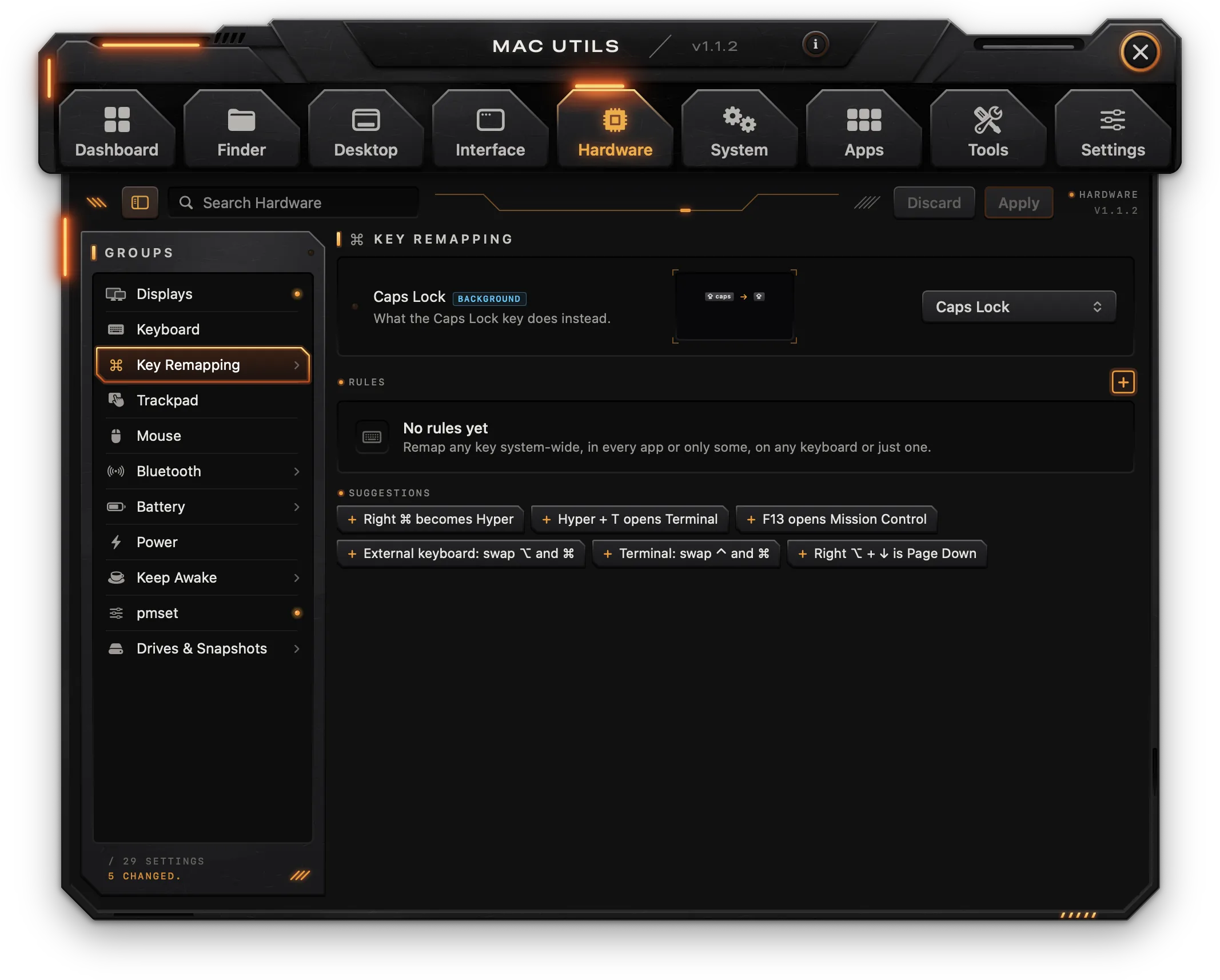
All remapping is done by Manager while it runs and needs Accessibility.
Caps Lock can be:
- Caps Lock (unchanged), Esc, Control, or Hyper (
⌃⌥⇧⌘). - Esc on tap, Control on hold.
- Caps Lock on double tap: a single tap types another key and a quick double tap turns Caps Lock on or off. Three more settings appear:
- On a single tap: Tab, Esc, Return, Delete, Space or Nothing. With
⌘,⌥,⌃or⇧held, the key is typed at once and Caps Lock never turns on, so⌘+ Caps Lock works as⌘Tab. - Double-tap window: 150-600 ms. A single tap waits this long before typing its key.
- While held: Nothing, Control or Hyper (
⌃⌥⇧⌘).
- On a single tap: Tab, Esc, Return, Delete, Space or Nothing. With
⌘ + § switches windows: ⌘ + § moves between the front app's windows the way ⌘ + ` does, and ⌘ + ⇧ + § goes back. For keyboards that type § where the grave accent should be.
Rules remap keys and combinations. The + button opens the rule editor:
- When I press: click the field and press the keys. Left and right modifiers are recorded apart (for example Right ⌘).
- Do this: Keys (record the keys to send) or Action: Mission Control, App Exposé, Show Desktop, Apps, Spotlight, Control Center, Screenshot, Lock Screen, Sleep Display, Open Terminal or Open Finder.
- Where (Applies in): All apps, Built-in keyboard, External keyboard, or one of the apps open now.
- Save.
A rule limited to one keyboard can only take a single key to a single key. Each rule in the list has a switch to turn it on or off, Edit (or double-click) and Delete.
Suggestions add ready-made rules in one click: Right ⌘ becomes Hyper · Hyper + T opens Terminal · F13 opens Mission Control · External keyboard: swap ⌥ and ⌘ · Terminal: swap ⌃ and ⌘ · Right ⌥ + ↓ is Page Down (with Right ⌥ + ↑ as Page Up).
Trackpad and Mouse
Trackpad
| Setting | What it does | Notes |
|---|---|---|
| Three-finger drag | Drag with three fingers | Log out |
| Tap to drag | Off, Without lock or With lock | Log out |
| Click and Force Click pressure | Light, Medium or Firm | |
| Turn off swipe back and forward in browsers | Two-finger sideways swipes no longer change pages |
Mouse
| Setting | What it does | Notes |
|---|---|---|
| Turn off pointer acceleration | The pointer moves in step with the mouse | Log out |
| Turn off the system's smooth scrolling | Pages move line by line | |
| Smooth scrolling for the wheel | The wheel gets momentum, like the trackpad | Background |
| Smooth scrolling strength | 0-100% | Background |
| Reverse scrolling for the mouse only | The trackpad keeps natural scrolling | Background |
| Back side button | Back, Forward, Mission Control, Show Desktop, App Exposé or Nothing | Background |
| Front side button | The same choices, for button 5 | Background |
Bluetooth
Lists paired devices, connected ones first, with Connected and Paired counts. Each device has Connect or Disconnect (the device stays paired). Bluetooth Settings opens the system pane; the refresh button looks again. Needs the Bluetooth permission.
Battery
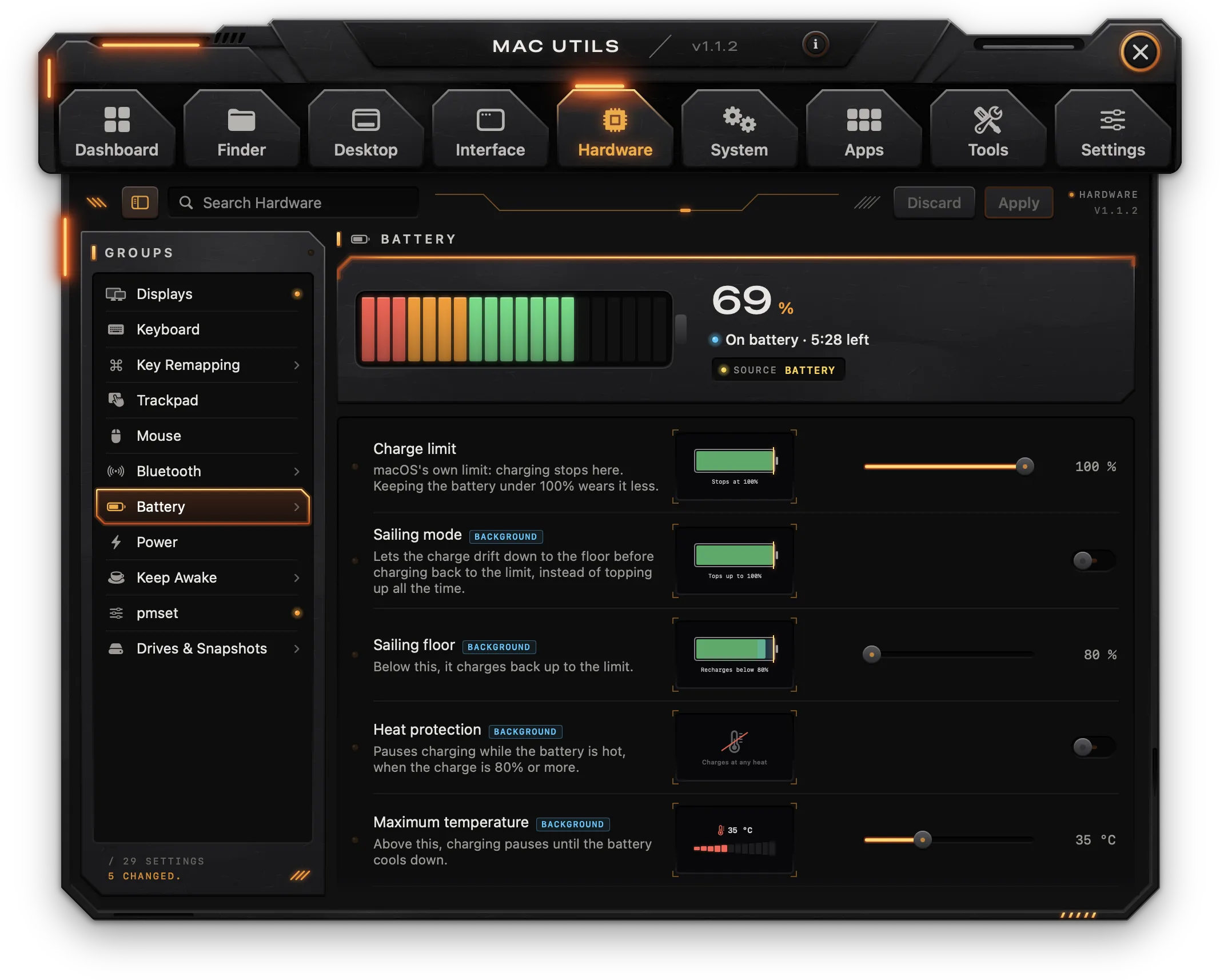
A drawing of the battery shows the charge, the limit line and, with sailing on, the sailing band. Beside it: the percentage, the charging state (for example Charging to 80%, Holding at 80% · on adapter, or the time left on battery) and the power source.
| Setting | What it does | Notes |
|---|---|---|
| Charge limit | macOS's own limit, 80-100%; charging stops there | |
| Sailing mode | Lets the charge drift down to the floor before charging back to the limit | Background |
| Sailing floor | 80-95%; below it, charging resumes | Background |
| Heat protection | Pauses charging while the battery is hot, from 80% charge up | Background |
| Maximum temperature | 30-45 °C | Background |
| Stop charging while asleep | The charge stays where it is while the Mac sleeps, from 80% up | Background |
| Top up to 100% once | Action (Top Up): charges to 100% this once, then the limit returns | |
| Calibration | Action (Calibrate): guides a full cycle with notifications | Background |
Calibration has three steps shown on a card: use the Mac on battery down to 15%, plug in and charge to 100%, then leave the charger in for an hour; the limit then comes back. Cancel stops it.
On a Mac without a battery the panel says so and the controls are off. On a Mac without a native charge limit, the limit, sailing and pauses are unavailable.
Power and pmset
Power
| Setting | What it does | Notes |
|---|---|---|
| Hibernation mode | Memory only, Memory and disk, or Disk only | Admin |
| Delete the sleep image file | Action (Delete): frees the space of /var/vm/sleepimage | Admin |
| Turn off Power Nap | The Mac stops fetching mail and backing up while asleep | Admin |
pmset (for both battery and power adapter; zero means never; all Admin)
| Setting | What it does |
|---|---|
| Turn the display off after | 0-180 min of inactivity |
| Sleep after | 0-180 min of inactivity |
| Spin down disks after | 0-180 min |
| Wake for network access | Wake on LAN |
| Start up after a power failure | Turns on when power returns |
| Low Power Mode | Less energy, some cost in performance |
| Keep network connections alive while asleep | Keeps Find My and remote access working |
| Remote terminal sessions keep the Mac awake | An open SSH session prevents sleep |
Keep Awake
Keeps the Mac from sleeping, like caffeinate.
- Keep awake for: 15 min, 1 h, 2 h, 4 h or Until stopped.
- Keep the display on too: off, only the Mac stays awake and the screen can still go dark.
- Keep Awake starts it; while on, the card says Staying awake with the time left and Stop ends it. The same card is on the Dashboard.
Drives & Snapshots
- External volumes with Eject All, which ejects every external and network volume at once.
- Local snapshots on the startup disk, each marked Time Machine or Before a macOS update. Time Machine snapshots have Delete (Admin); macOS removes update snapshots by itself. Look Again reads the list again.
System
Login Window and Security
Login Window (all Admin)
| Setting | What it does | Notes |
|---|---|---|
| Login window message | Text under the users, for example contact details | |
| Ask for name and password | Hides the list of users | |
| Hide the administrator account | Hides your account from the login window and Users & Groups; it keeps working | Caution |
Security
| Setting | What it does | Notes |
|---|---|---|
| Gatekeeper: allow apps from anywhere | From macOS 15, it still has to be confirmed in Privacy & Security | Admin, Caution |
| Don't warn about apps downloaded from the internet | Downloaded apps open without the dialog | Caution |
| Remove quarantine from a file | Action (Choose…): frees an app or file blocked for coming from the internet | |
| Turn off the crash report dialog | Apps that quit unexpectedly no longer open the report | |
| Touch ID for sudo in the Terminal | Writes pam_tid to /etc/pam.d/sudo_local, which survives macOS updates | Admin |
App Permissions
Every app and what it may use (Camera, Microphone, Full Disk Access, Accessibility, Screen Recording, Input Monitoring, Automation, Contacts, Calendars, Photos, folders, Bluetooth and more), allowed or denied. Reading the list needs Full Disk Access (Open Settings…); Manager only reads it.
- Search apps or permissions filters the list.
- Reset on an app clears every permission it has; it asks again the next time.
Location Services are kept apart by macOS and are not listed.
Analytics & Suggestions
| Setting | What it does | Notes |
|---|---|---|
| Don't share Mac Analytics with Apple | Stops sending diagnostics and usage data | Admin, May do nothing |
| Turn off Siri | Siri stops listening and leaves the menu bar | May do nothing |
| Don't help improve Siri and Dictation | Audio of requests isn't stored or reviewed | May do nothing |
| Turn off suggestions in Spotlight and Look Up | Searches stay on the Mac | |
| Turn off Safari search suggestions | What you type in the address bar isn't sent as you type | Quit Safari, Full Disk Access |
Launch and Background Items
Launch Items lists every agent and daemon apps installed in ~/Library/LaunchAgents, /Library/LaunchAgents and /Library/LaunchDaemons, with Agents, Daemons and Kept alive counts.
- Each item has a switch to turn it off or on (daemons and shared agents are Admin), its program, tags At login and Kept alive, and Show in Finder.
- Watch for new launch items sends a notification the moment an app installs a new agent or daemon (needs Notifications).
- Login Items in System Settings opens the system pane.
Background Items lists everything registered to run in the background, enabled, disabled and dormant ones included. macOS lets only the administrator read it, so Read… asks for the password (Manager only reads it). Each item shows tags such as Enabled, Disabled, Dormant and Visible. Login Items opens the system pane. Reset background items (Reset…) forgets every background item; apps register theirs again as they open (Admin, Restart, Caution).
Sharing, Name & Startup
Sharing shows what is on now (SSH, Screen, Files, AirPlay) and has a switch for each, starting from the state read from macOS. Sharing Settings opens the system pane.
| Setting | What it does | Notes |
|---|---|---|
| Remote Login (SSH) | Log in to this Mac with ssh | Admin, Full Disk Access |
| Screen Sharing | Other Macs can see and control this screen | Admin |
| File Sharing | Shares folders over SMB | Admin, May do nothing |
| AirPlay Receiver | iPhones and Macs can play to this Mac | May do nothing |
Name & Startup (all Admin)
| Setting | What it does |
|---|---|
| Computer name | How the Mac shows up in AirDrop, on the network and in Find My |
| Network name (hostname) | The name in the Terminal and in .local addresses; letters, digits and hyphens only |
| Startup chime | The sound the Mac plays when it turns on |
App Appearance and Features
App Appearance keeps apps on Light or Dark regardless of the system's mode. + adds an app from the open apps or with Choose from Applications…; each app then has System, Light or Dark (the app has to be quit for the change). The minus button removes it from the list.
System Features
| Setting | What it does | Notes |
|---|---|---|
| Skip disk image (.dmg) verification | Large images mount without the verification bar | Caution |
| AirDrop over Ethernet and on unsupported Macs | Looks for other Macs on every interface, wired included | Log out |
Spotlight lists the volumes with a switch each (Index *volume*, Admin) to turn indexing on or off, with tags Startup and Removable.
Time Machine
| Setting | What it does | Notes |
|---|---|---|
| Time between backups | 15-720 min (built in, it's one hour) | Admin |
| Allow unsupported network disks | Shows shares without official support as destinations | Caution |
| Unthrottled background backups | Backups finish faster but weigh more; resets on restart | Admin |
| Don't offer new disks for backup | Stops asking about each disk you connect | |
| Delete local snapshots | Action (Delete…): frees the space kept for recent versions | Admin |
Network, DNS and Hosts
Network (actions)
| Action | What it does | Notes |
|---|---|---|
| Flush the DNS cache | Fixes sites that won't load after a server or VPN change | Admin |
| Test the connection quality | Download and upload speed and responsiveness (networkQuality) | Show Output |
| Check the router and DNS | Packet loss to the router and the DNS servers in use | Show Output |
| Wireless Diagnostics | Opens Apple's Wi-Fi tool |
DNS
- DNS servers for *service*: one field per network service (Wi-Fi first), servers separated by spaces; empty uses the servers the network hands out (Admin).
- Presets for the first service: Cloudflare, Google, Quad9, From the network.
- DNS over HTTPS provider: Cloudflare, Google, Quad9 or NextDNS. Install the DNS over HTTPS profile (Install…) saves a configuration profile and opens it; confirm it in System Settings › Profiles.
Hosts File shows the entries of /etc/hosts. Type a domain in Domain to block, like ads.example.com and click Block to point it to 0.0.0.0. The × button removes an entry; system entries stay. Changes are Admin; comments in the file are kept, and the previous file is saved as /etc/hosts.macutils-backup.
Wi-Fi
- The current network with Signal, Noise, Channel and band, and Rate. Showing the network name needs Location (Allow Location…); Manager never asks for or keeps your location.
- Preferred networks, in order of preference: the arrows move a network up or down, the trash button forgets it, and Auto-join turns automatic joining on or off per network. All changes are Admin.
SMB, TCP and Utilities
SMB Sharing (written to /etc/nsmb.conf; applies to shares mounted afterwards; all Admin)
| Setting | What it does |
|---|---|
| Turn off SMB packet signing | Faster copies to a NAS on trusted networks |
| Minimum protocol version | SMB 1, SMB 2 or SMB 3 |
| Turn off change notifications on network folders | Less traffic on folders with many files |
Advanced TCP (rarely make a difference on a modern macOS; reset on restart; all Admin, May do nothing)
| Setting | What it does |
|---|---|
| Delayed ACK | Off, On or Auto |
| Maximum socket buffer | 1-16 MB per connection |
| Send window | 64-4096 KB |
| Receive window | 64-4096 KB |
Hidden Utilities shows the apps that come with macOS but don't appear in Applications (Wireless Diagnostics, Ticket Viewer, Directory Utility, Archive Utility and others). Click a tile to open it.
Apps
Default Apps
The app that opens each kind of link or file: Web browser, Email, PDF documents, Images, Plain text, Source code, JSON, Video, Audio, ZIP archives, ssh:// links and ftp:// links. Pick an app from the list of apps that can open it. macOS asks to confirm some changes, such as the web browser, in a dialog of its own.
Menu Shortcuts
Your own keyboard shortcuts for any app's menu items.
- Add App and pick the app.
- Type the menu item's title exactly as it shows (for example “Export as PDF…”). For an item in a submenu, write the path:
Format->Font->Bold. - Record the shortcut and click Add.
Each shortcut has an × to remove it, and the minus button removes the app from the list. The app has to be quit and reopened for its shortcuts to change.
App settings
| Group | Setting | What it does | Notes |
|---|---|---|---|
| Safari | Debug menu | Safari's hidden Debug menu | Quit Safari, Full Disk Access |
| Safari | Turn off AutoFill | Contacts, passwords, credit cards and other forms | Quit Safari, Full Disk Access |
| Show attachments as icons | Images and PDFs show as icons, not previews | Quit Mail | |
| Copy email addresses without the name | Copies only the address | Quit Mail | |
| TextEdit | Plain text by default | New documents open as .txt | |
| TextEdit | Turn off smart quotes | Straight quotes stay straight | |
| TextEdit | Turn off smart dashes | Two hyphens stay two hyphens | |
| Terminal | UTF-8 only | Removes the other encodings from the list | |
| Terminal | Secure Keyboard Entry | Other apps can't read what you type in Terminal | |
| Terminal | Focus follows the mouse | The window under the pointer takes the keyboard | |
| Activity Monitor | Update frequency | 1 s, 2 s or 5 s | |
| Activity Monitor | Show all processes | Includes system and other users' processes | |
| Activity Monitor | Dock icon | App icon, CPU usage, CPU history, Network or Disk | |
| Messages | Subject field | A subject line above the message | Quit Messages |
| Photos | Don't open Photos when an iPhone or camera connects | Plugging in an iPhone just charges it | |
| Music | Turn off Now Playing notifications | No banner for a new track | |
| Feedback Assistant | Don't gather large files automatically | A report carries only what you attach | |
| Xcode | Show build duration | The last build's time in the activity bar | Quit Xcode |
| Simulator | Screenshot folder | Where ⌘S in the Simulator saves images | Quit Simulator |
Software Update
The automatic updates of System Settings › General › Software Update. All Admin.
| Setting | What it does |
|---|---|
| Check for updates automatically | macOS looks for updates in the background |
| Download new updates when available | Updates download ahead, ready to install |
| Install macOS updates | Minor macOS updates install by themselves |
| Install Security Responses and system files | Urgent fixes install as soon as they come out |
| Install app updates from the App Store | App Store apps update by themselves |
Listening Ports
Every TCP and UDP port a process listens on, with PORT, PROTO, ADDRESS, PROCESS and PID, and TCP and UDP counts. By default only your own processes show; Include System Processes… asks for the administrator password to see all of them (Only My Processes goes back). Quit, shown when the pointer is over a row, ends the process on that port right away.
Homebrew
If Homebrew is installed: its Services with their status and a Start or Stop button (Start also starts it at every login; Stop keeps it from starting). Clean up Homebrew shows what it would free and Clean Up removes old versions, downloads and unused dependencies.
Developer Cleanup
- Docker: usage by images, containers, volumes and build cache, with Clean Up… (removes stopped containers, unused images, networks and build cache; Caution). Docker has to be running to measure.
- Unavailable simulators: simulators of iOS versions Xcode no longer has, with Delete.
- Orphaned node_modules: folders whose project is gone or untouched for three months, with their sizes. Check the ones to remove and click Delete Checked…;
npm installbrings them back.
Tools
Cleanup
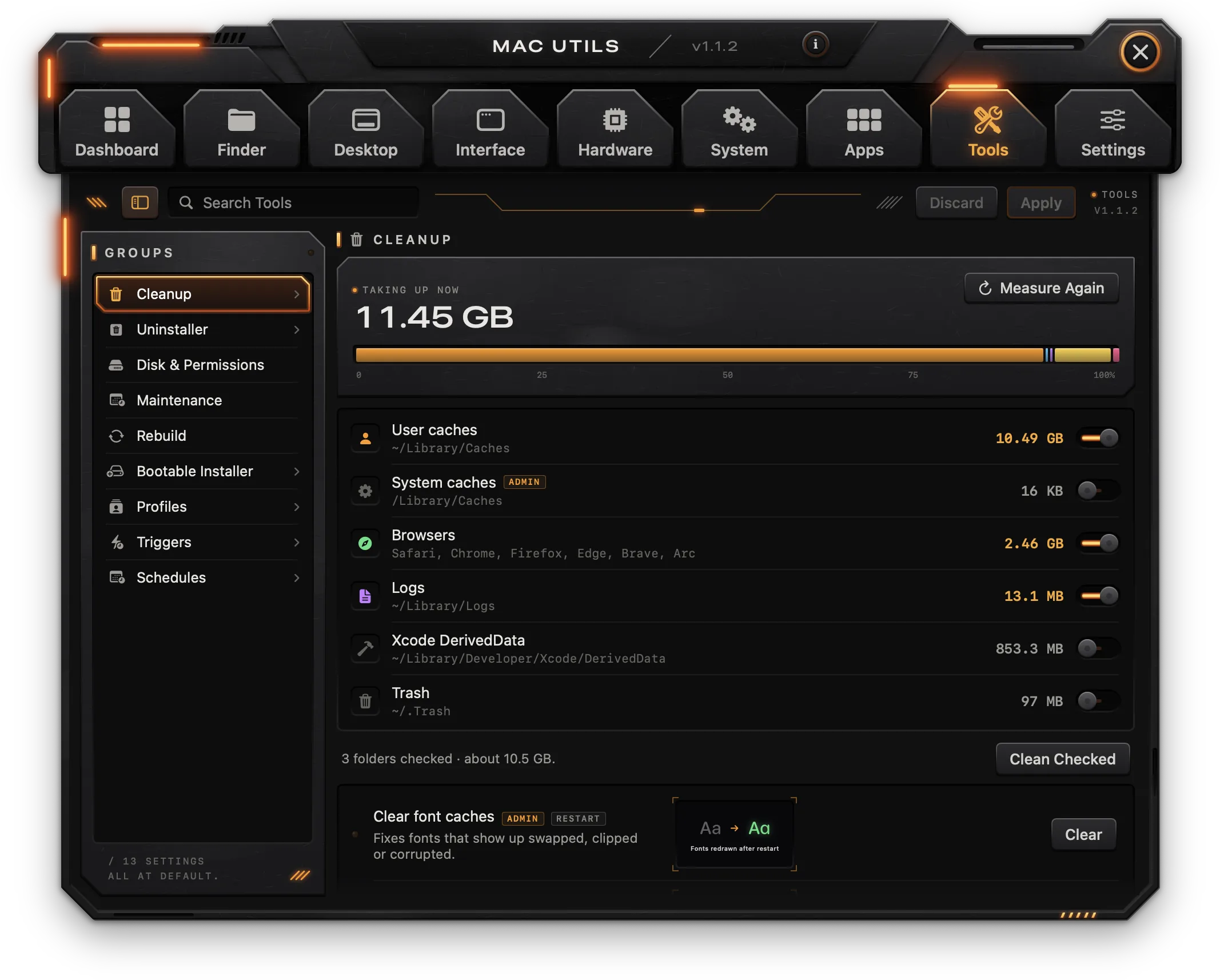
Measures what each location takes now (Measure Again measures again) and shows a bar of how they share the total.
| Location | Path | Notes |
|---|---|---|
| User caches | ~/Library/Caches | |
| System caches | /Library/Caches | Admin |
| Browsers | Safari, Chrome, Firefox, Edge, Brave, Arc | |
| Logs | ~/Library/Logs | |
| Xcode DerivedData | ~/Library/Developer/Xcode/DerivedData | |
| Trash | ~/.Trash | May need Full Disk Access |
Check the locations to clean (the selection is remembered) and click Clean Checked; the magnifier shows a location in the Finder. The same group has three actions:
| Action | What it does | Notes |
|---|---|---|
| Clear font caches | Fixes fonts that show swapped, clipped or corrupted | Admin, Restart |
| Clear logs | Deletes app logs and old crash reports | Admin |
| Clear recent items | Empties the lists of recent documents, apps and servers |
Uninstaller
- Drop an app on the panel, or click Choose App….
- Manager lists the app and its leftovers found by bundle id and name (caches, preferences, containers, group containers, support files, scripts, saved state, web storage, cookies, logs, launch agents and daemons), each with its size.
- Uncheck anything to keep. The summary shows how many leftovers and the total size.
- Remove App and Leftovers… moves the app and the checked items to the Trash (Admin, Caution).
Disk, Maintenance and Rebuild
Disk & Permissions
| Action | What it does | Notes |
|---|---|---|
| Verify the volume's structure | Checks the startup disk without unmounting it | |
| Repair home folder permissions | Restores ownership and default permissions in ~ | Admin |
| Inspect an item's permissions and ACLs | Owner, group, permissions, ACLs and extended attributes of a chosen item | Show Output |
Maintenance (the housekeeping macOS used to do overnight; all Admin)
| Action | What it does |
|---|---|
| Rotate system logs | Archives and trims the system's log files |
| Update the locate database | So locate finds new files; takes a few minutes |
| Free inactive memory | Empties the disk cache kept in memory |
Rebuild
| Action | What it does | Notes |
|---|---|---|
| Rebuild Launch Services | Fixes “Open With” menus with duplicate or deleted apps | |
| Rebuild the Spotlight index | Erases and rebuilds the index; search is incomplete for a few hours | Admin |
| Rebuild the Quick Look cache | Fixes wrong or missing previews and thumbnails | |
| Reindex Mail | Fixes searches that miss messages and wrong counts | Quit Mail, Full Disk Access |
Bootable Installer
- Installer: pick an “Install macOS” app from Applications, or Download the Latest to download the full installer into Applications.
- Drive: pick a connected drive of 16 GB or more.
- Create Installer… erases the drive and writes the installer to it (Admin, Caution). It takes 10 to 30 minutes.
Profiles
A profile is a named set of settings (Home, Work, Travel…) applied all at once.
- New Profile creates one from every setting changed from the macOS default now.
- Each profile shows its icon (click to change it), name and number of settings. Settings expands the list: each entry shows its value, × leaves it out, and Add a Setting as It Is Now adds any setting with its current value.
- Apply sets the profile's values on the Mac. The last profile applied is marked Active.
- Delete with the trash button, then Delete to confirm.
Profiles can also be applied from the Dashboard, from triggers and with manager profile apply.
Triggers
When something happens, apply a profile or run an action. Manager watches for these events while it is open.
- New Trigger.
- When: The Mac wakes, Joining a Wi-Fi network (network name), A USB device connects (device name, empty for any), A display connects or A display disconnects (display name, empty for any), or At a time of day (for example 08:30).
- Apply profile (pick one; make a profile first in Tools › Profiles) or Run action (Choose an action…).
- Save.
Each trigger has a switch to turn it on or off and a trash button.
Schedules
| Setting | What it does | Notes |
|---|---|---|
| Clean caches | Off, Daily, Weekly or Monthly; cleans the locations checked in Cleanup | Background |
| Run maintenance scripts | Off, Daily or Weekly; rotates logs and updates the locate database at 3:15, through a launchd job that runs even with Manager closed (weekly runs on Sunday) | Admin |
| Turn on and off on a schedule | Start up or wake and Shut down, each with a switch, days (Every day, Weekdays, Weekends) and a time | Admin |
The power schedule shows the pmset repeat command it stands for.
Settings
General
- Launch at login: opens Manager when you log in; with the menu bar icon on, it starts there without the window. Only for the copy installed in Applications.
- Check for updates automatically (with Check Now) and Install updates automatically: see Updates below.
- Send anonymous usage statistics: see Usage statistics and privacy below.
Menu Bar
- Show icon in the menu bar turns the icon on (see Getting started).
- The list below it holds the menu's items, each marked Switch, Choice or Action, with up and down arrows to reorder and × to remove.
- Add to the Menu picks any switch, choice or action (actions that need a file can't be added), plus Keep the Mac awake, Night Shift, Restart Finder, Restart Dock and Restart the menu bar.
Applying
- Manager helper: Install… installs a helper with your password once; afterwards changes marked Admin go through it without asking for the password. It does only what Manager's own settings and actions do, and only for Manager. The status shows Not installed, Older version (with Update…) or Installed (with Remove…).
- Restart the Finder, Dock and menu bar for me: when a setting needs it, they restart right after it's applied. Off, the result bar offers Restart Now.
- Show Terminal commands: the code button on each row.
- Show previews: the live drawing beside each row.
Command Line
The manager command ships inside the app. Install… (Admin) links it into /usr/local/bin, so Terminal finds it; this works only for the copy in Applications. See The manager command below.
Permissions and Data
Permissions lists Full Disk Access, Accessibility, Screen Recording, Bluetooth, Location and Notifications, each with why it is asked, Granted or Not granted, and Allow…. Administrator password shows Helper installed or When needed.
Data
| Row | Buttons |
|---|---|
| Your settings | How many settings are changed and how many log entries exist. Show Change Log… opens the Dashboard |
| Profile | Export… saves all your settings to a JSON file; Import… reads one and, after Import and Apply, applies its values to this Mac |
| Start over | Restore Defaults… puts every changed setting back to the macOS value, now (Restore). Erase All… forgets Manager's own settings (remaps, snapping, schedules…) and the log; what is set on the Mac stays as it is (Erase All) |
Keyboard shortcuts
| Shortcut | Where | Action |
|---|---|---|
⌘F | Dashboard | Search every setting and action |
⌃⌘S | Catalog tabs | Hide or show the groups sidebar |
⌘W | Window | Close the window (quits unless the menu bar icon is on) |
⌘, | Anywhere in the app | Open Settings |
⌘Q | App menu, menu bar icon | Quit Manager |
⌘X ⌘C ⌘V ⌘A ⌘Z ⇧⌘Z | Text fields | Cut, copy, paste, select all, undo, redo |
⌃⌥← and others | System-wide | Window snapping, when on (see Desktop › Window Snapping) |
The manager command
manager reads and changes the same settings as the app, by the same ids, with the same engine. A change applies right away, as in the app, and an open Manager picks it up. Install it from Settings › Command Line, or run it from /Applications/Manager.app/Contents/MacOS/manager-cli.
| Command | What it does |
|---|---|
manager list [tab] | Settings and actions with their ids and values; tabs: finder, desktop, interface, hardware, system, apps, tools. ● marks a setting changed from the macOS default |
manager search <words> | Finds settings by name or description |
manager get <id> | A setting's value, default, who carries it out, its markers and its command |
manager set <id> <value> | Changes a setting on this Mac |
manager reset <id> | Puts a setting back to the macOS default |
manager run <id> [<arg>…] | Runs an action; --item <path> for an action that takes a file |
manager profile list | The profiles; ● marks the active one |
manager profile apply <name> | Applies a profile |
manager log [count] | The change log (20 entries by default) |
manager help | The usage text |
- Values: switches take
on/off(alsotrue/false,yes/no,1/0); choices take the option's value or label; sliders take a number in the shown unit. --no-restartapplies without restarting the Finder, the Dock or the menu bar.- Admin changes ask for the password, or go through the helper if installed.
- Actions that only the app performs (Keep Awake, window layouts, calibration and others) are handed to the open app; if Manager isn't running, the command says so.
- The command exits with a non-zero status when a change fails.
manager set finder.showHidden on
manager get dock.tileSize
manager profile apply Work --no-restartTroubleshooting
A permission is on but the feature doesn't work
The Accessibility entry in System Settings can be tied to an older build of the app. The switch looks on, but Manager still has no permission. Remove Manager from System Settings › Privacy & Security › Accessibility (or run tccutil reset Accessibility com.macutils.app in Terminal), then click Allow… in Manager and turn it on again.
Snapping, remapping or mouse extras do nothing
These need Accessibility and work only while Manager is running. Check Settings › Permissions › Accessibility and keep Manager open, or turn on the menu bar icon so closing the window leaves it running.
“Not applied” under a row
The row says why. Common cases:
- macOS kept Manager from changing …: the setting belongs to a protected app (Safari, Mail, some accessibility settings). Grant Full Disk Access with Allow… and change it again.
- The administrator password was not given: the password prompt was cancelled. Change the setting again, or install the helper.
- This display doesn't answer DDC: the external display or its connection doesn't support DDC; brightness, contrast, volume and input can't be set from the Mac.
A change doesn't show
Settings marked Log out or Restart take effect at the next login or restart. Settings marked Quit *App* take effect when the app opens again. If Restart the Finder, Dock and menu bar for me is off, click Restart Now in the result bar. Apps opened before Window corner radius changed keep the old radius until they reopen.
Settings marked May do nothing or Experimental
They use keys that macOS may ignore on recent versions or that have no public setting. If one has no effect, put it back with Restore macOS Default.
The battery limit options are greyed out
The Mac has no battery, or it has no native charge limit. Sailing, heat protection and the pauses depend on that limit.
The Wi-Fi network name is hidden
macOS shows the network name only to apps with the Location permission. Click Allow Location… in System › Wi-Fi.
Changing the default web browser fails
macOS asks to confirm a new default browser in a dialog of its own. Accept it there.
Removing a launch item or ejecting a drive fails
Daemons and shared agents need the administrator password. A drive that an app is still using can't be ejected; quit the app and try again.
The manager command isn't found
Install it from Settings › Command Line › Install…. It links to the copy in Applications, so Manager has to be installed there first. Up to version 1.3.3 the app was called Mac Utils and the command macutils; installing it again links manager and removes the old link.
With the other Mac apps
Workspace, Manager, Clipboard and Network work as one when more than one is installed.
- Stacked windows: with more than one of their windows open, they sit together in one stack. The app menu › Stack Windows picks how, for every app at once:
- Compact (the default): the app in use shows its whole bar at the bottom of the stack with its page under it, and the others shrink to strips above it, each with its icon, name, tabs and close button. A tab on a strip opens that page and brings that app into use.
- Full Bars: every bar whole, one under the other; the app with a page open goes last, its page under it.
- Accordion: every bar whole, in the order they opened; a page opens under its own bar and pushes the bars below it down.
- Separate Windows: each window on its own, where you put it.
- In every stacked mode one page is open at a time: opening a tab in one app folds the other's page. Dragging any bar or strip moves the whole stack; closing a window closes the gap, and the last one left takes the top of the stack.
- One search: Search also finds what the other installed apps have (their pages, settings and actions), listed under In and the app's name; picking one opens it in its app, launching it if it isn't running. What you made or copied (pinboards, snippets, layouts, sessions, the apps you copied from) stays out. Each app keeps the list of what can be found in it in
~/Library/Application Support/leonardoaguiar.com/search/, on this Mac only. - About shows the other apps, with Open for those installed and Get It for the others, which opens their page on leonardoaguiar.com.
Updates
Manager checks leonardoaguiar.com for a new version once a day. This is on from the start; turn it off in Settings › Check for updates automatically.
- The small square button with two arrows on the bar, right of the i, checks for updates when clicked. While a new version is waiting, it lights orange with a lamp at its corner, and its tooltip names the version.
- Check for Updates… in the app menu does the same.
- Install updates automatically (off until you turn it on) downloads updates in the background and installs them when Manager quits, or right away from the notice it shows.
- Every update is signed by the developer and refused if the signature doesn't match.
Help and bug reports
The Help menu and the Help plate on About have:
- Manager Documentation (also Documentation in the app menu): this page.
- Changelog: every version and what changed in it, read from leonardoaguiar.com, so it includes versions newer than the one installed. The installed version is marked, and a newer one comes with Update Now. The same list is at leonardoaguiar.com/manager/changelog.
- Report a Bug… (also in the app menu, under Check for Updates…): a form that sends a report to the developer.
Report a Bug
| Field | What goes in it |
|---|---|
| Kind | Bug, Crash or Suggestion. |
| How often | Every time, Sometimes or Once (not asked for a suggestion). |
| Title | A few words about the problem, up to 140 characters. |
| What happened | What you were doing and what you saw (for a suggestion, the idea and what it would help with). |
| Steps to reproduce · optional | How to make it happen again, step by step. |
| What you expected · optional | What should have happened instead. |
| Email · optional | Only used to reply to you; never published or shared. The form checks the address looks right. |
| Attachments | Up to 5 files of up to 10 MB each: drop them on the field or click Add Files…. Screenshots, screen recordings and logs help the most. |
| Include system information | On by default: the app's version and build, the macOS version, the Mac's model, processor and memory, and the language. Show displays exactly what goes. |
The kind, how often, the steps and what you expected go to the developer together with what happened. Send Report (⌘↩) is available once there's a title and a description, and the line beside it says what's still missing; Clear empties the form. Sending shows the report's number. Sending takes a moment of the Mac's work first, which keeps the site from being flooded with automated reports.
Your Reports
The reports sent from this Mac are listed next to the form, with their status - received, confirmed, in progress, fixed (with the version that fixes it) or closed - and an orange lamp when there's a reply you haven't read. Click a report to read the conversation and add more details. Remove from This List takes it off this Mac's list; the report stays with the developer. The list is refreshed each time the page opens, or with the button next to its title.
Usage statistics and privacy
Manager sends anonymous usage statistics to leonardoaguiar.com once a day. They're on by default and help decide what to fix and improve. Settings › Send anonymous usage statistics turns them off, and whatever was waiting to be sent is discarded.
What goes: the app's version, the macOS version, the Mac's model identifier (such as Mac15,3), the processor type, the language, a few settings that are on or off (such as checking for updates on its own), how many times the app was opened, the minutes its window was open, and how many times each tab and function was used, counted per day. With it goes an identifier that is random, made by the app and used only for this.
What never goes: names, the values you set, file names or anything about you, files, and anything you type. The site records the country the statistics come from, not the IP address.
Besides the statistics, Manager connects to leonardoaguiar.com only to check for and download updates, to show the changelog, and to send a bug report when you write one and to check its replies.