 Workspace
Workspace
Workspace is a menu bar app for macOS that snaps windows into zones, opens each app in the zone you give it, and saves the position of every window as a session you can restore later. It runs entirely on your Mac.
Until version 1.2.2 the app was called Workspace Manager.
Requirements and installation
Requirements
| Item | Requirement |
|---|---|
| System | macOS 13 Ventura or later |
| Processor | Apple silicon (M1 or later); Intel Macs are not supported |
| Space | About 12 MB |
| Permission | Accessibility, to move and resize windows |
| Price | Free |
Installing
- Download the
.pkginstaller from leonardoaguiar.com/workspace. - Open it and follow the installer. It puts the app at
/Applications/Workspace.app. - At the end, Workspace opens by itself as an icon in the menu bar.
Installing a newer version over an older one keeps your layouts, sessions, shortcuts and settings. If the app is open, the installer closes it and opens it again at the end.
Note: Workspace is not notarized by Apple yet. If macOS stops the installer, open System Settings › Privacy & Security, find the message about Workspace and click Open Anyway. This is only needed for the first installation.
Where your data lives
Layouts, saved sessions, shortcuts and the apps given to template zones are kept in ~/Library/Application Support/WorkspaceManager:
layouts/: one file per saved layout.sessions/: one file per saved session, plussessions-index.json.shortcuts.json: your shortcut keys.template-apps.json: the apps given to the zones of the built-in templates.
Settings are kept in the app's system preferences. Settings › Data › Show in Finder opens the data folder.
Uninstalling
Workspace has no uninstaller.
- To delete your layouts and sessions too, first use Settings › Data › Erase All… (or delete
~/Library/Application Support/WorkspaceManagerafter quitting). - Quit the app: open the menu bar panel and click the power button (Quit Workspace).
- Drag Workspace from Applications to the Trash.
Getting started
First launch
Workspace lives in the menu bar. It has no Dock icon while its window is closed; with the window open, it shows in the Dock and in ⌘Tab. The installed copy turns on Launch at login the first time it runs; you can turn it off in Settings.
Only one copy runs at a time. Opening the app again while it runs (from Finder, Spotlight or Applications) brings up the main window.
Accessibility permission
macOS only lets an app move and resize other apps' windows with the Accessibility permission. Without it, drag-to-snap, Apply and the global shortcuts do not work.
- On first launch, the app asks for the permission.
- Turn on Workspace in System Settings › Privacy & Security › Accessibility.
- The app notices the change within a couple of seconds and starts snapping and shortcuts; no restart is needed.
The Dashboard (Grant Access) and Settings › Permissions (Grant Access…) ask again if the permission is off.
The menu bar icon
The icon is four tiles framed by four brackets. Click it to open the menu bar panel, which lists the layouts and the saved sessions (see Menu bar panel). Click it again, click anywhere outside the panel or press Escape to close the panel.
The panel's gear button (Open Workspace) opens the main window. The icon can be hidden in Settings; the app then opens from Spotlight or Applications, or with Open App (⌃⇧Space).
The main window
The main window is a metal bar near the top of the screen with the tabs Dashboard, Layouts, Sessions, Shortcuts and Settings. It opens with just the bar, every tab closed. Clicking a tab slides its page down under the bar; clicking the open tab again folds the page away.
- The plate in the middle of the bar shows the app's name and version. Its i button opens About.
- Search (
⌘F), on the bar left of the close button, finds anything in the app (see Search). - The round button with an X closes the window (
⌘W). The app keeps running in the menu bar. - Drag an empty part of the bar to move the window. It reopens where you left it.
While the window is open, the menus at the top of the screen are the app menu - About Workspace, Documentation, Check for Updates…, Stack Windows (see With the other Mac apps), Report a Bug… and Quit Workspace (⌘Q) - and Help, with Workspace Documentation, Changelog and Report a Bug….
Search
Search on the bar, or ⌘F anywhere in the window, opens a page with one field over everything in the app: every setting, every shortcut, the Dashboard's sections and quick actions, the templates and your saved layouts and sessions, and the help pages.
- With nothing typed, it lists all of it, by tab.
- Typing narrows it to the best matches; case and accents don't count, and every word typed has to match. The matching part of each name is lit.
- Click a result, or move with
↑↓and pressReturn: it opens the tab, scrolls to the setting and lights it for a moment. A layout or session opens in its tab; an action (Save Session, Check for Updates…) runs right away. Escapeclears the field, then closes the page. Clicking Search again closes it too.
Snapping in three steps
- Pick a layout: in the Dashboard click Choose Layout, or click a layout card in the menu bar panel.
- Drag any window. The zones light up as the pointer passes over them.
- Release over a zone. The window takes the zone's position and size.
Dashboard
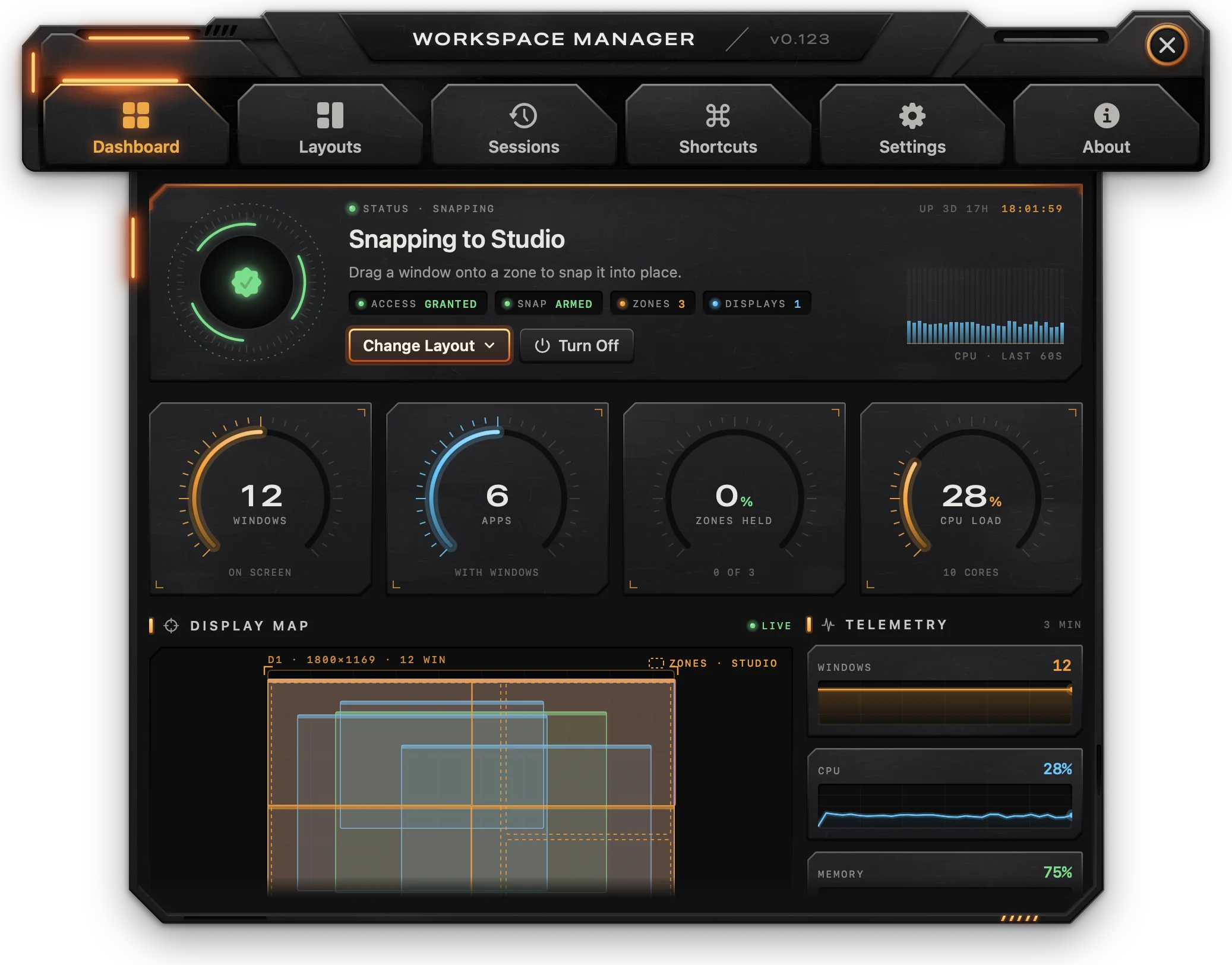
The Dashboard shows what is on your screens and the state of snapping. Its readings refresh every 2 seconds, only while the Dashboard is open.
Status
The top plate shows one of three states:
| Status | Title | What it means |
|---|---|---|
| access needed | Window snapping is offline | The Accessibility permission is off. Grant Access asks for it. |
| standing by | Pick a layout to arm snapping | No layout is active. |
| snapping | Snapping to layout name | Dragged windows snap to this layout's zones. |
- Choose Layout (or Change Layout when one is active) opens a list of the Templates and Saved Layouts, each with its number of zones. Click one to make it the active layout; the one in use is lit. Turn Off Snapping, at the bottom, deactivates it.
- Turn Off deactivates the active layout.
- The readouts show Access (Granted or Denied), Snap (Armed or Idle), the number of Zones in the active layout and the number of Displays.
- At the right: the uptime, the time, and the CPU use of the last 60 seconds.
A layout chosen here is active on the main display, or on the display it was already active on.
Dials
- Windows: windows on screen.
- Apps: apps with windows on screen.
- Zones held: how many of the active layout's zones have a window filling them, as a percentage and as "N of M". Shows "no layout" when none is active.
- CPU load: overall processor use, with the number of cores.
Display Map and Telemetry
Display Map draws your displays as they are arranged, each labeled with its number, resolution and window count, with every window to scale in its app's color and the active layout's zones dashed over them. Hover a window to see its app's name.
Telemetry shows the last 3 minutes of Windows, CPU and Memory. These numbers come from your own Mac and are not sent anywhere.
Quick Actions
- Save Session: saves the position of every window as a new session named "Session N".
- Restore Last Session: restores the most recent session, moving the windows of apps that are open (Partial mode). Disabled when nothing is saved.
- Edit Layouts: opens the Layouts tab.
App Distribution and Session Log
App Distribution lists the six apps with the most windows on screen, with each app's share; the rest are grouped as "more apps".
Session Log charts the window count of the last 14 saved sessions and lists the three most recent, each with a Restore button (Partial mode). Show All opens the Sessions tab.
Layouts
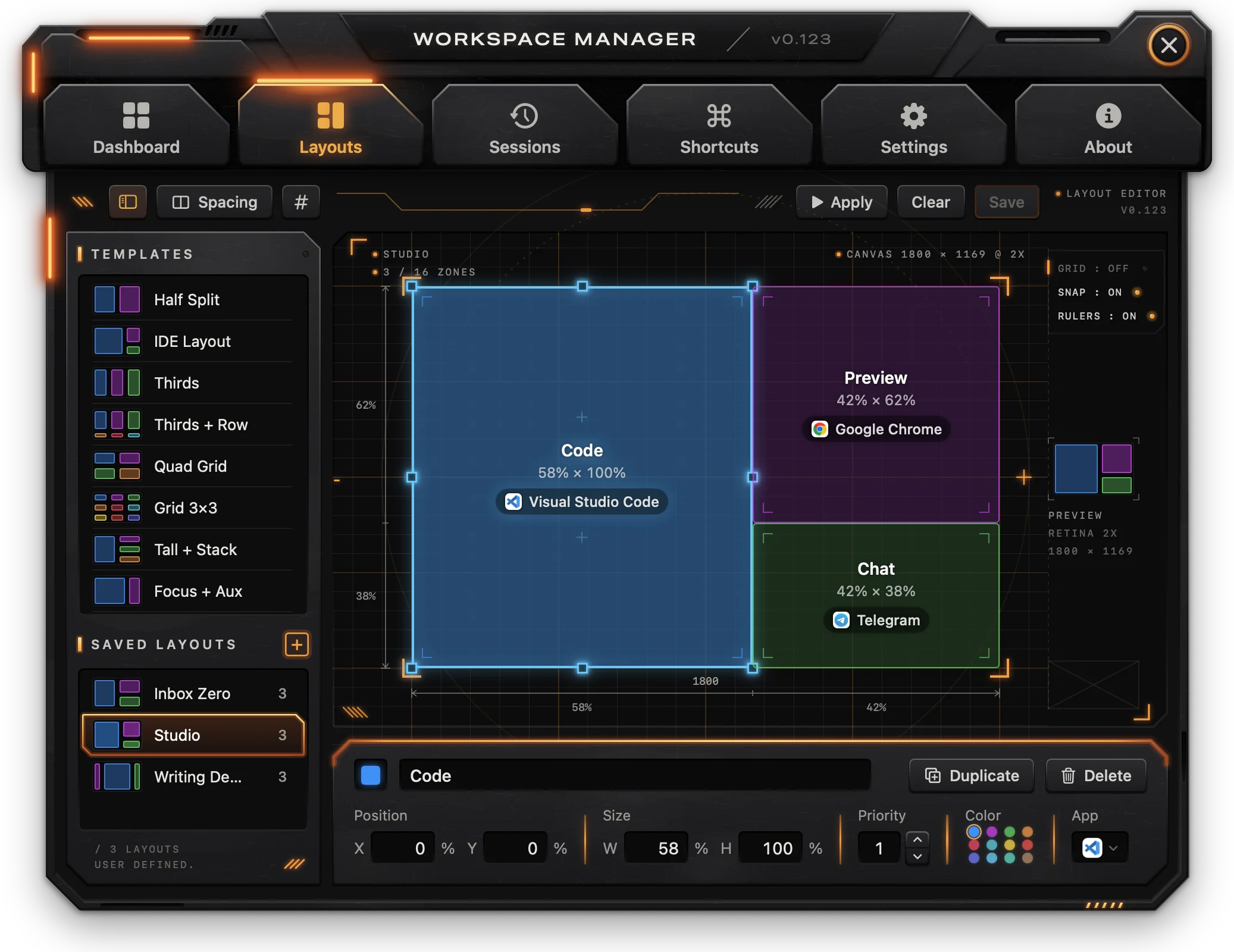
A layout is a set of zones drawn on a screen, in percentages of its usable area (the area inside the menu bar and the Dock), so the same layout fits any display. A layout has up to 16 zones. Each zone has a name, a position and size, a priority, a color and, optionally, apps.
Templates and saved layouts
The list at the left has two parts:
- Templates: nine built-in layouts.
- Saved Layouts: the layouts you made, with each one's number of zones. The count under the list shows how many there are.
| Template | Zones |
|---|---|
| Half Split | Left, Right (50% each) |
| IDE Layout | Editor (65%), Sidebar and Terminal stacked at the right |
| Thirds | Left, Center, Right |
| Thirds + Row | Three tall zones on top, three short zones below |
| Quad Grid | Four quarters |
| Grid 3×3 | Nine equal cells, named by row and column |
| Tall + Stack | Left half, three zones stacked at the right |
| Focus + Aux | Focus (70%), Auxiliary (30%) |
| Ultrawide Dev | Reference (25%), Editor (50%), Tools (25%) |
Click a template or a saved layout to open it in the editor. The open one stays highlighted.
- New layout: click + next to "Saved Layouts", type a name (empty takes "Layout N") and click Create or press
Return. The layout is saved right away and opens in the editor. - Rename: double-click a saved layout's name, type and press
Return;Escapecancels. A name that is empty or already used by another layout (ignoring case) is not accepted; the field shows a red outline. - Delete: hover the row, click the trash button, then click Delete to confirm. The context menu has Open and Delete Layout. Deleting the layout open in the editor starts a new, empty one; deleting the active layout turns snapping off.
- The sidebar button at the left of the editor bar (
⌃⌘S) hides and shows the list. Drag the list's right edge to widen it.
Templates cannot be redrawn: their zones, names, positions, sizes, priorities, colors and spacing are locked. You can give their zones apps, which are kept with the template. Save Copy (⌘S) saves the template as a new layout with the same name (numbered if the name is taken, for example "Thirds 2"), which you can then change.
Editor bar
| Control | What it does |
|---|---|
| Sidebar button | Hides or shows the layout list (⌃⌘S). |
| Display | Shown with more than one display: picks the display whose shape the canvas shows and where Apply places windows. |
| Spacing | Opens the gaps of the layout: Between windows (gutters) and Screen edges (margins), 0 to 32 pt in steps of 2, with a preview. Disabled for templates. |
| Grid (#) | Shows a 12 × 8 grid on the canvas (⌘G). |
| Apply | Opens each zone's apps and puts their windows in the zones (see Apply). Disabled until a zone has an app. |
| Clear | Removes every zone from the layout. Disabled for templates. |
| Save | Saves the layout (⌘S). Lit only when there are unsaved changes. For a template, this button is Save Copy. |
Spacing applies when windows snap to the layout; click Save to keep it. Saving the active layout updates snapping immediately.
Canvas
The canvas shows the selected display in its real proportions, with the layout's name, the zone count ("N / 16 zones", plus "template" or "unsaved") and the display's resolution and scale above it.
- Draw a zone: drag on an empty part of the screen. The new zone is named "Zone N", gets the next priority and the next color.
- Select a zone: click it. Click an empty area or press
Escapeto deselect. - Move a zone: drag it. Near another zone's edge or the screen's edge (about 14 pt), it is pulled over to sit against it, and an orange guide line shows where.
- Resize a zone: drag one of the eight handles of the selected zone. Edges stick to other zones' edges and the screen's edges within about 8 pt. A zone cannot be smaller than 5% of the screen in either direction.
- Delete a zone: press
Deletewith the zone selected.
Each zone shows its name, its size in percent and, if it has apps, their icons with the name of the one on top.
The column at the right of the canvas has three switches:
- GRID: the 12 × 8 grid (same as the Grid button).
- SNAP: whether moved and resized edges stick to other edges. On by default.
- RULERS: rulers along the bottom and left of the screen, marking where the zones' columns and rows start and end, each stretch labeled with its share of the screen, over a drafting grid with a line every 5%. On by default.
Below the switches, Preview shows the layout in miniature with the display's type and resolution.
Zone properties
With a zone selected, the panel under the canvas shows its properties. With none selected, it shows tips.
| Property | Description |
|---|---|
| Name | The zone's name, shown on the canvas and in the snap overlay. |
| Duplicate | Copies the zone, offset by 5%, with the same color and apps (⌘D). Disabled at 16 zones. |
| Delete | Removes the zone. |
| Position X, Y | The zone's top-left corner, in % of the screen's width and height. Press Return to apply. |
| Size W, H | The zone's width and height, in % of the screen (5 to 100). Press Return to apply. |
| Priority | 1 to 99. Where zones overlap, the lower number gets the window. Also sets the zone order for Apply and for the zone shortcuts. |
| Color | Blue, Purple, Green, Orange, Pink, Teal, Yellow, Red, Indigo, Cyan, Mint or Brown. |
| Apps | The apps whose windows go in this zone when the layout is applied. |
For a template, only Apps can be changed, and the panel shows a Template badge.
Apps in a zone
Click the Apps field (it reads "Pick apps" when empty) to open the zone's app list:
- In this zone lists the zone's apps in order; the first one goes on top. Drag rows to reorder them, or click × to remove one.
- The context menu of each row has Move to Top, Move Up, Move Down, Add Another Window (the same app again, for a second window) and Remove.
- Apps lists the apps installed on the Mac (in
/Applications,/System/Applications,~/Applicationsand one folder level inside them, plus the Finder). Use Search apps to filter. Click an app to add it at the back of the stack; click it again to take it out.
There is no limit to the number of apps in a zone. An app that is not installed on this Mac shows a dashed icon and is skipped by Apply.
Apply
Apply puts each zone's apps in their zones on the display picked in the editor:
- An app that is not running is opened.
- A window already in its zone (covering at least 80% of the zone, and the zone at least 80% of the window) stays where it is.
- The app's other windows on that display go to the zones nearest them.
- Zones still empty get new windows, through the app's
⌘Nmenu item, or by typing⌘Nwhen it has none. - An app that will not open another window gives up one of its windows from another display.
- Windows in the same zone are stacked: the first app in the zone's list ends up on top.
Zones are filled in order of priority. While one Apply is running, the Apply buttons are disabled.
Sessions
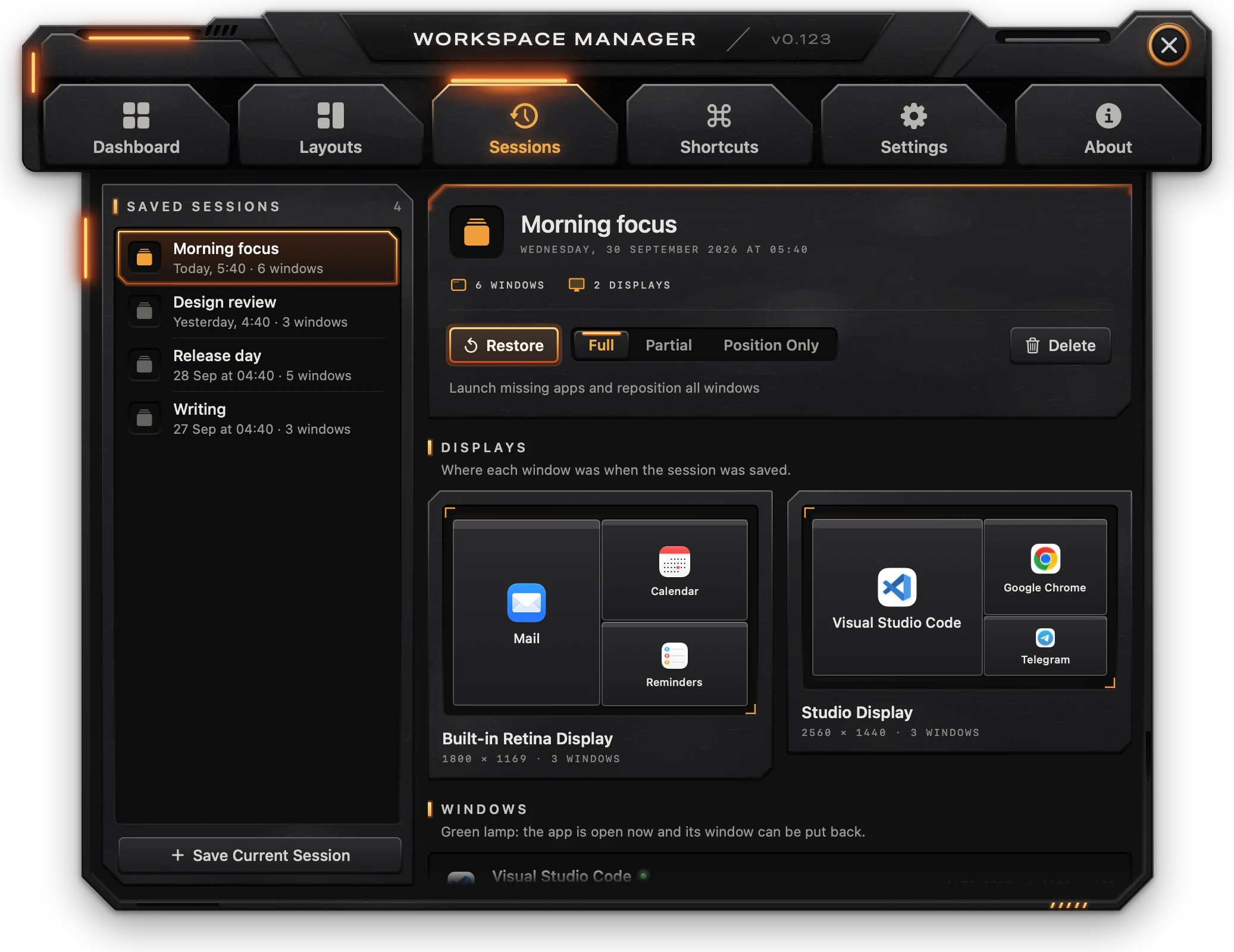
A session remembers where every window was on every display. Sessions are only saved when you ask; nothing is saved automatically.
Saving a session
- Save Current Session, below the list, saves the windows as they are now, named "Session N".
- The same can be done from the menu bar panel (Save, with a name), the Dashboard (Save Session) or the Save Session shortcut (
⌃⌥S).
A session includes the windows visible on screen at that moment: minimized windows and Workspace's own windows are not included.
Saved Sessions
The list at the left shows every saved session, newest first, with its name, when it was saved ("Today, 17:40", "Yesterday, 09:12" or a date) and its window count. Click a session to see its details.
Session details
- Name: click the name to edit it and press
Returnto rename. An empty name puts the old one back. - The full date and time of the save, and the number of windows and displays.
- Restore puts the windows back using the restore mode selected next to it.
- Delete asks for confirmation, then deletes the session. This cannot be undone.
- Displays: each display in miniature, with every window where it was, showing its app's icon and name. Hover a window to see its title.
- Windows: every window in the session with its app, title, size and position. A green lamp means the app is open now and its window can be put back. Hovering a row highlights the window on the display preview, and the other way around.
Restore modes
| Mode | What it does |
|---|---|
| Full | Opens the apps that are not running, waits two seconds, then moves and resizes all windows. The default in the Sessions tab. |
| Partial | Moves and resizes only the windows of apps that are open. Used by the menu bar panel, the Dashboard and the Restore Last Session shortcut. |
| Position Only | Moves windows to their saved positions without resizing them. |
Each saved window is matched to an open window of the same app: first one still exactly at the saved position, then one with the same title, then the one closest to the saved position. Each open window is used once, so apps with several windows get each one back in its place.
Shortcuts
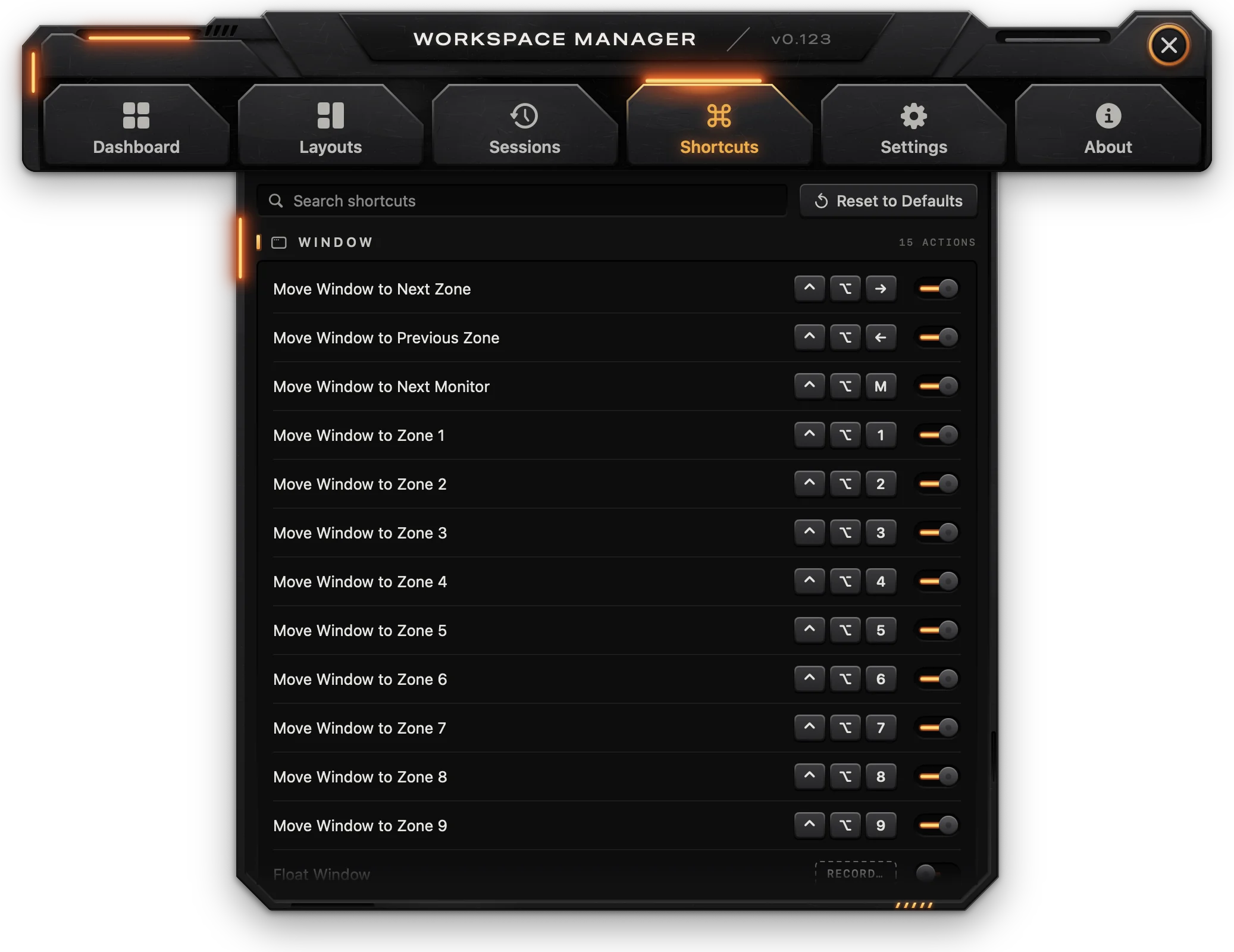
The Shortcuts tab lists 23 global keyboard actions, grouped as Window, Layout, Session and App. They work in any app and need the Accessibility permission. Window actions act on the focused window of the app in front, using the active layout's zones on that window's display.
Default shortcuts
| Action | Default | What it does |
|---|---|---|
| Move Window to Next Zone | ⌃⌥→ | Moves the window to the next zone, going round. From outside any zone, to the first. |
| Move Window to Previous Zone | ⌃⌥← | Moves the window to the previous zone, going round. From outside any zone, to the last. |
| Move Window to Next Monitor | ⌃⌥M | Moves the window to the next display, left to right. Into the same zone there if it is in one; otherwise at the same relative place and size. |
| Move Window to Zone 1 … 9 | ⌃⌥1 … ⌃⌥9 | Puts the window in that zone. |
| Float Window | none | Puts the window back where it was before a shortcut first moved it. A window no shortcut moved is centered at 60% × 70% of the screen. |
| Maximize in Zone | ⌃⌥F | Fills the zone the window is in, or the whole usable screen when it is in no zone. |
| Center in Zone | ⌃⌥C | Centers the window in its zone (or the screen), keeping its size, no bigger than the zone. |
| Reapply Layout | ⌃⌥R | If the active layout has apps, applies it again (same as Apply). Otherwise, moves every window on screen back into the zone it mostly covers. |
| Cycle Next Layout | ⌃⌥L | Makes the next template or saved layout the active one, in the order of the menu bar panel. |
| Cycle Previous Layout | ⌃⌥⇧L | Makes the previous layout the active one. |
| Save Session | ⌃⌥S | Saves a new session named "Session N". |
| Restore Last Session | ⌃⌥⇧S | Restores the most recent session in Partial mode. |
| Open Menu Bar | ⌃⇧W | Opens or closes the menu bar panel. With the icon hidden, opens the main window. |
| Open App | ⌃⇧Space | Opens the main window. |
| Toggle Overlay | ⌃⌥O | Shows or hides the active layout's zones on screen. |
Zones are numbered by priority (lower first), and in the layout's order where the priority is the same.
A short notice near the top of the screen confirms what a shortcut did (the layout it switched to, the session it saved) or why it could not act: "No layout active", "No zone N", "No saved sessions". When the focused window cannot be found, or Workspace itself is in front, the Mac beeps.
Changing a shortcut
- Double-click the keys of an action (or RECORD… for an action with no keys).
- When the row shows PRESS SHORTCUT…, press the new combination.
- To stop without changing it, press
Escapeor click Cancel Recording.
A shortcut needs at least one modifier key (⌃, ⌥, ⇧ or ⌘). ⌘Q, ⌘W, ⌘H, ⌘M and ⌘Tab are reserved by the system. A combination already used by another enabled action is refused with the name of that action. Recording a shortcut also turns the action on.
Other controls
- The switch at the end of each row turns the action on or off; a disabled action keeps its keys, dimmed.
- Search shortcuts filters by action name or key.
- Reset to Defaults puts every shortcut back to its default.
Settings
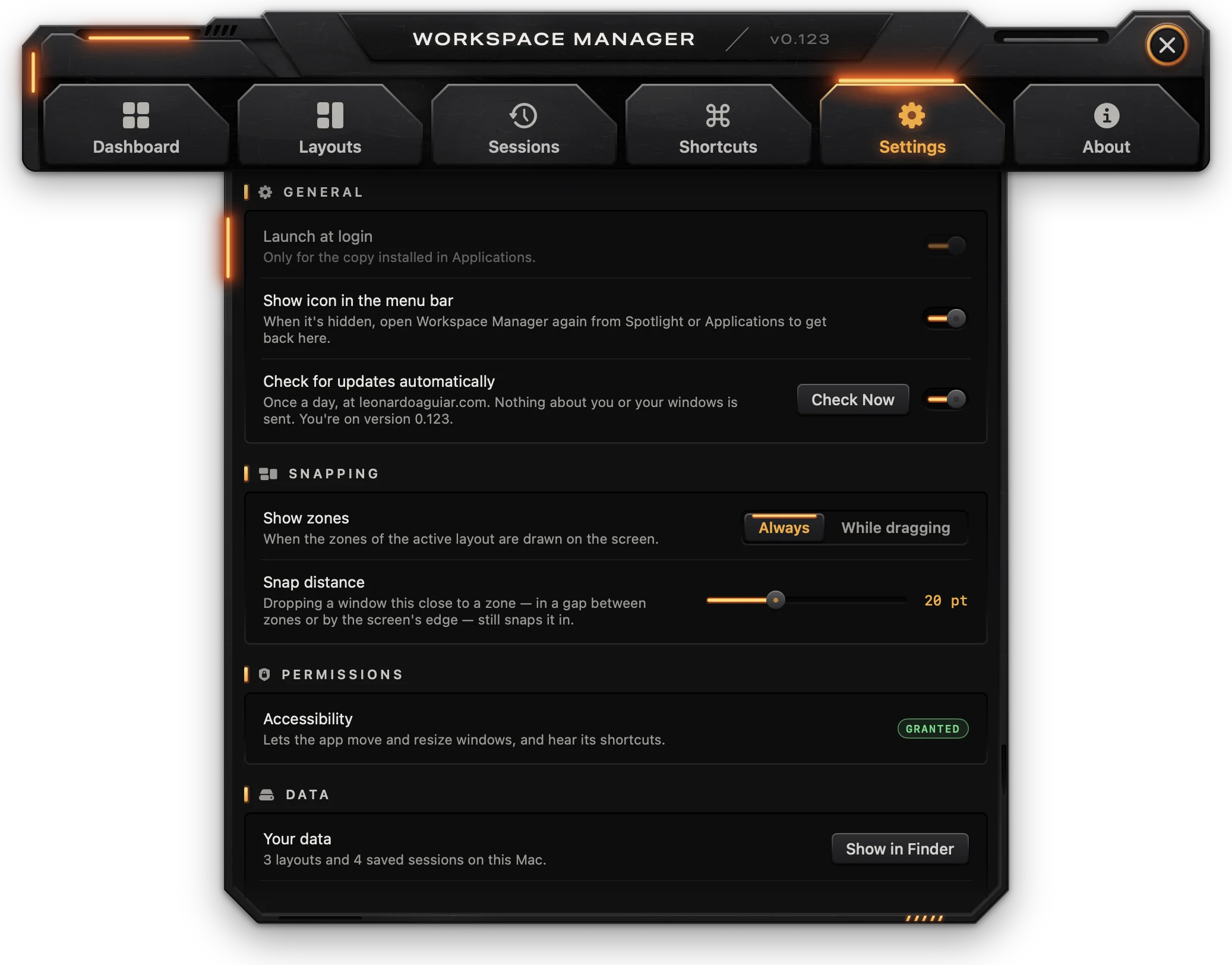
General
| Setting | Description |
|---|---|
| Launch at login | Starts the app in the menu bar when you log in. On by default. Only available for the copy installed in Applications. |
| Show icon in the menu bar | Shows or hides the menu bar icon. When it is hidden, open Workspace again from Spotlight or Applications to get to the window. |
Check for updates automatically (with Check Now) and Install updates automatically are described under Updates below; Send anonymous usage statistics under Usage statistics and privacy.
Snapping
| Setting | Description |
|---|---|
| Show zones | Always: the active layout's zones stay drawn on screen. While dragging: they appear only while a window is being dragged. Default: Always. |
| Snap distance | How far outside a zone (in a gap between zones or by the screen's edge) a window can be dropped and still snap into it. 0 to 60 pt in steps of 5; 0 is Off. Default: 20 pt. |
Permissions
Accessibility shows Granted or Not granted. When not granted, Grant Access… asks for the permission and opens System Settings at Privacy & Security › Accessibility.
Data
- Your data: the number of layouts and saved sessions on this Mac. Show in Finder opens the data folder.
- Backup: Export… saves layouts, saved sessions, shortcuts and the apps given to template zones in one
.jsonfile ("Workspace Backup date.json"). Import… reads such a file and asks for confirmation: its layouts and sessions are added, the ones already here are replaced by the backup's copy, and your shortcuts are replaced by the backup's. - Start over: Reset Settings… puts Show icon in the menu bar, Show zones and Snap distance back to their defaults, keeping layouts, sessions and shortcuts. Erase All… deletes every layout, saved session and shortcut, the apps given to templates, and resets those settings.
Returncancels the erase dialog. Export a backup first to keep a copy.
About
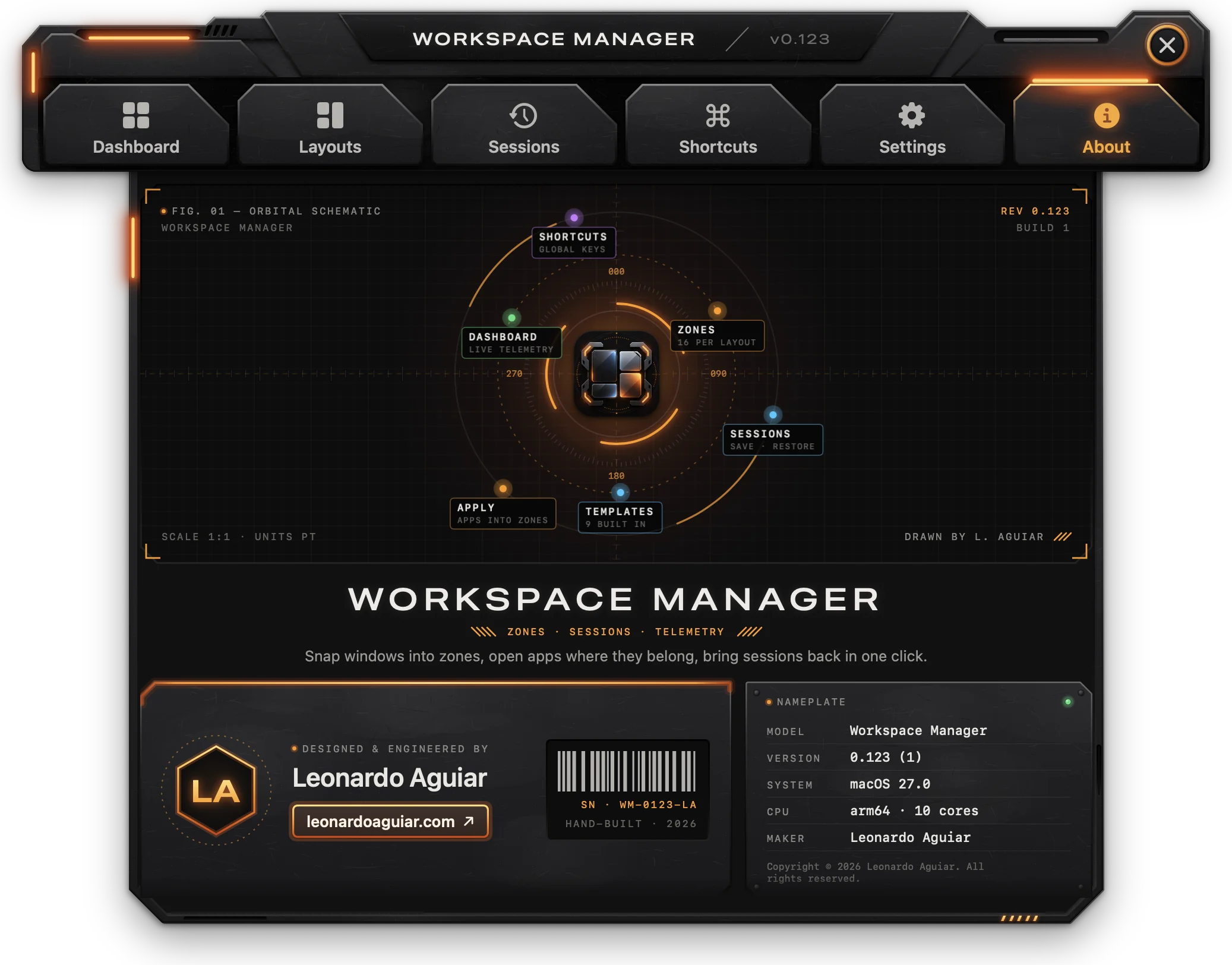
The About page opens from the i button on the bar or from About Workspace in the app menu. It shows the version and build, a nameplate with the model, version, system and maker, and a link to leonardoaguiar.com.
Menu bar panel
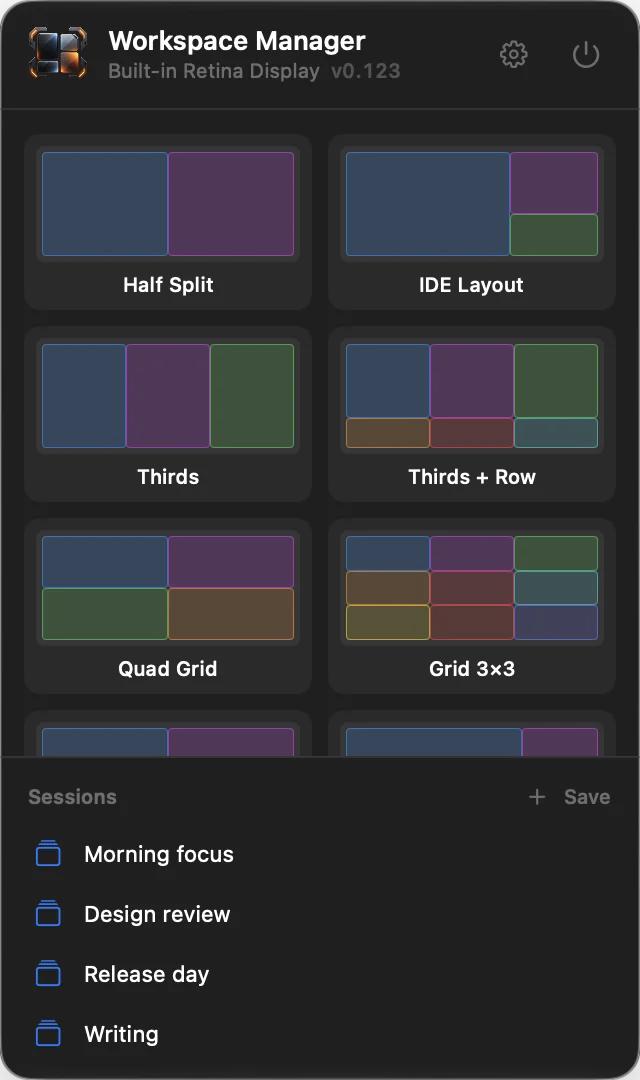
The panel opens under the menu bar icon and works on the display where you clicked it: previews, snapping and Apply happen on that display.
Header
The logo, the app's name, the name of the display and the version. The gear button (Open Workspace) opens the main window; the power button (Quit Workspace) quits the app.
Layouts
Every template and saved layout appears as a card with a miniature of its zones.
- Hover a card to preview its zones on the screen.
- Click a card to make it the active layout: windows dragged on screen snap to its zones, and the panel closes. The active card has a green dot and a blue outline, and the other cards are dimmed.
- Click the active card again to turn snapping off. Pressing
Escapein any app also turns it off. - A layout whose zones have apps shows a small play button next to its name: Apply opens each zone's apps in their zones on this display (see Apply) and turns snapping off.
Sessions
The saved sessions, newest first, by name (five are shown; the rest scroll).
- Save (+): type a name and press
Returnto save the windows as they are now. PressingReturnwith the field empty uses "Session N".Escapecancels. - Click a session to restore it in Partial mode. Hover it to see when it was saved and how many windows it has.
- On hover, the restore button does the same, and the trash button deletes the session after a second click on Delete.
- The context menu has Restore, Restore and Open Missing Apps (Full mode), Rename and Delete.
Snapping windows
Drag to snap
With a layout active, drag any window by its title bar. Once the pointer has moved about 10 pt, the zone under the pointer lights up and shows "Release to place here". Release, and the window takes the exact position and size of the zone, with the layout's spacing; the zone flashes.
- The zone is chosen by where the pointer is when you release, not by the window's edges.
- Outside every zone, the nearest zone within the Snap distance takes the window. With Snap distance Off, the pointer has to be inside a zone.
- Zones smaller than 200 × 150 pt on the current display do not take windows.
- Where zones overlap, the one with the lower priority number wins.
- Snapping uses the zones laid out on the display where the drag starts.
Showing the zones
With Show zones set to Always, the active layout's zones stay drawn on the display where it was chosen, as dashed outlines with their names. With While dragging, they appear on the display of the drag and disappear after the drop. Toggle Overlay (⌃⌥O) shows or hides them at any time.
Turning snapping off
Snapping stays on until you turn it off. Any of these turns it off:
- Press
Escapein any app. It is only observed, so the app in front still receives it. Pressing it during a drag leaves the window where it is dropped. - Click the active card in the menu bar panel.
- Click Turn Off in the Dashboard, or Turn Off Snapping in its layout list.
- Click a play (Apply) button in the menu bar panel.
Quitting Workspace moves nothing. Snapping and the shortcuts stop until it is opened again.
Keyboard shortcuts
The global shortcuts are listed under Shortcuts. These keys work inside the app:
| Keys | Where | Action |
|---|---|---|
⌘W | Main window | Close the window |
⌘F | Main window | Search the app |
↑ ↓ Return | Search | Move through the results, open one |
Escape | Search | Clear the field, then close the page |
⌘Q | Main window | Quit Workspace |
⌃⌘S | Layouts | Hide or show the layout list |
⌘G | Layouts | Show or hide the grid |
⌘S | Layouts | Save the layout (Save Copy for a template) |
⌘D | Layouts | Duplicate the selected zone |
Delete | Layouts | Delete the selected zone |
Escape | Layouts | Deselect the zone |
Return | Name and number fields | Confirm the name or value |
Escape | Renaming a layout | Cancel |
Escape | Shortcuts | Cancel recording |
Escape | Menu bar panel | Drop the session name being typed, or close the panel |
Escape | Any app, with a layout active | Turn snapping off |
⌘X ⌘C ⌘V ⌘A ⌘Z ⇧⌘Z | Text fields | Cut, copy, paste, select all, undo, redo |
Troubleshooting
Accessibility is on, but nothing snaps
The permission in System Settings can belong to an older copy of the app. Open System Settings › Privacy & Security › Accessibility, select Workspace, remove it with the − button, then add /Applications/Workspace.app again with + (or click Grant Access… in Settings) and turn it on. The app picks up the permission within a couple of seconds.
A dragged window does not snap
- Check that a layout is active: the Dashboard shows "Snapping to layout name". Pressing
Escapein any app turns snapping off. - Release with the pointer over the zone, or within the Snap distance of it.
- Zones smaller than 200 × 150 pt on that display are ignored. Use a larger zone or fewer zones.
A shortcut does nothing or beeps
- A beep means there is no focused window to move, Workspace itself is in front, or (for Move Window to Next Monitor) there is only one display.
- "No layout active" means the window actions need an active layout: pick one in the menu bar panel or the Dashboard.
- "No zone N" means the active layout has fewer zones than the number pressed.
- Check that the action's switch is on in the Shortcuts tab and that Accessibility is granted.
A new shortcut is not accepted
It needs at least one modifier key, cannot be ⌘Q, ⌘W, ⌘H, ⌘M or ⌘Tab, and cannot be the same as another enabled action. The message under the keys says which.
Apply is greyed out or leaves a zone empty
- Apply needs at least one zone with an app. It is also disabled while another Apply is running.
- An app with a dashed icon is not installed on this Mac and is skipped.
- Zones without an existing window get a new one through the app's
⌘N. An app that does not open a window that way within a few seconds gets no new window; Workspace then moves one of its windows from another display, if it has one.
A session restore misses some windows
- Clicking a session in the menu bar panel, the Dashboard's Restore buttons and the Restore Last Session shortcut use Partial mode, which only moves windows of apps that are open. Use Restore and Open Missing Apps in the panel's context menu, or Full in the Sessions tab.
- Full mode waits two seconds after opening apps. An app that takes longer may not be repositioned; restore again once it is open.
- Windows that were minimized when the session was saved are not in it.
The template cannot be changed
Templates cannot be redrawn; only their zones' apps can be set. Click Save Copy to make an editable layout from it.
A layout cannot be renamed
The name is empty or another layout already has it (ignoring case). Choose a different name.
The menu bar icon is gone
Show icon in the menu bar is off. Open Workspace from Spotlight or Applications (or press ⌃⇧Space), go to Settings and turn it on.
Launch at login cannot be turned on
The switch only works for the copy installed in /Applications. Install the app with the .pkg from the website.
Import says the file isn't a backup
Import only reads files made by Export… in Settings › Data.
With the other Mac apps
Workspace, Manager, Clipboard and Network work as one when more than one is installed.
- Stacked windows: with more than one of their windows open, they sit together in one stack. The app menu › Stack Windows picks how, for every app at once:
- Compact (the default): the app in use shows its whole bar at the bottom of the stack with its page under it, and the others shrink to strips above it, each with its icon, name, tabs and close button. A tab on a strip opens that page and brings that app into use.
- Full Bars: every bar whole, one under the other; the app with a page open goes last, its page under it.
- Accordion: every bar whole, in the order they opened; a page opens under its own bar and pushes the bars below it down.
- Separate Windows: each window on its own, where you put it.
- In every stacked mode one page is open at a time: opening a tab in one app folds the other's page. Dragging any bar or strip moves the whole stack; closing a window closes the gap, and the last one left takes the top of the stack.
- One search: Search also finds what the other installed apps have (their pages, settings and actions), listed under In and the app's name; picking one opens it in its app, launching it if it isn't running. What you made or copied (pinboards, snippets, layouts, sessions, the apps you copied from) stays out. Each app keeps the list of what can be found in it in
~/Library/Application Support/leonardoaguiar.com/search/, on this Mac only. - About shows the other apps, with Open for those installed and Get It for the others, which opens their page on leonardoaguiar.com.
Updates
Workspace checks leonardoaguiar.com for a new version once a day. This is on from the start; turn it off in Settings › Check for updates automatically.
- The small square button with two arrows on the bar, right of the i, checks for updates when clicked. While a new version is waiting, it lights orange with a lamp at its corner, and its tooltip names the version.
- Check for Updates… in the app menu does the same, and so does searching for it.
- Install updates automatically (off until you turn it on) downloads updates in the background and installs them when Workspace quits, or right away from the notice it shows.
- Every update is signed by the developer and refused if the signature doesn't match.
Help and bug reports
The Help menu and the Help plate on About have:
- Workspace Documentation (also Documentation in the app menu): this page.
- Changelog: every version and what changed in it, read from leonardoaguiar.com, so it includes versions newer than the one installed. The installed version is marked, and a newer one comes with Update Now. The same list is at leonardoaguiar.com/workspace/changelog.
- Report a Bug… (also in the app menu, under Check for Updates…): a form that sends a report to the developer.
Report a Bug
| Field | What goes in it |
|---|---|
| Kind | Bug, Crash or Suggestion. |
| How often | Every time, Sometimes or Once (not for a suggestion). |
| Title | A few words about the problem, up to 140 characters. |
| What happened | What you were doing and what you saw (for a suggestion: what you'd like the app to do). |
| Steps to reproduce · optional | How to make it happen again, one step per line. |
| What you expected · optional | What should have happened instead. |
| Email · optional | To hear back by email; never published or shared. |
| Attachments | Up to 5 files of up to 10 MB each: drop them on the field or click Add Files…. Screenshots, screen recordings and logs help the most. |
| Include system information | On by default: the app's version and build, the macOS version, the Mac's model, processor and memory, and the language. Show displays exactly what goes. |
Send Report (⌘↩) is ready once there's a title and a description; until then the line beside it says what's missing. It sends everything as one report and shows its number; Clear empties the form. Sending takes a moment of the Mac's work first, which keeps the site from being flooded with automated reports.
Your Reports
The reports sent from this Mac are listed next to the form, with their status - received, confirmed, in progress, fixed (with the version that fixes it) or closed - and an orange lamp when there's a reply you haven't read. Click a report to read the conversation and add more details. Remove from This List takes it off this Mac's list; the report stays with the developer. The list is refreshed each time the page opens, or with the button next to its title.
Usage statistics and privacy
Workspace sends anonymous usage statistics to leonardoaguiar.com once a day. They're on by default and help decide what to fix and improve. Settings › Send anonymous usage statistics turns them off, and whatever was waiting to be sent is discarded.
What goes: the app's version, the macOS version, the Mac's model identifier (such as Mac15,3), the processor type, the language, a few settings that are on or off (such as checking for updates on its own), how many times the app was opened, the minutes its window was open, and how many times each tab and function was used, counted per day. With it goes an identifier that is random, made by the app and used only for this.
What never goes: names, window titles, app names, layouts or sessions, files, and anything you type. The site records the country the statistics come from, not the IP address.
Besides the statistics, Workspace connects to leonardoaguiar.com only to check for and download updates, to show the changelog, and to send a bug report when you write one and to check its replies.