 Clipboard
Clipboard
Clipboard is a menu bar app for macOS that keeps a history of what you copy: text, rich text, links, code, images, files and colors. The history opens from the menu bar icon or with ⇧⌘V in any app. Clips can be pinned to pinboards, reused as snippets, and kept out of the history by app or by pattern. Everything stays on the Mac.
Requirements and installation
- macOS 13 Ventura or later.
- A Mac with Apple silicon (M1 or later). Intel Macs are not supported.
- About 10 MB of disk space.
- Accessibility permission, only if you want Clipboard to paste into the app in front for you (see Permissions under Getting started).
Installing
- Download the
.pkgfrom leonardoaguiar.com/clipboard. - Open it and follow the installer. It puts the app in
/Applications/Clipboard.app. - At the end, Clipboard opens by itself as an icon in the menu bar.
Note: Clipboard is not notarized by Apple yet. If macOS stops the installer, open System Settings › Privacy & Security, find the message about it and click Open Anyway. This is only needed the first time.
Installing a new version over an existing one keeps your settings and history. If the app is running, the installer closes it and opens it again at the end.
Where your data lives
~/Library/Application Support/Clipboard/library.jsonholds the history, pinboards, snippets, excluded apps, content rules, shortcuts and the count of today's pastes. It is readable only by your user.~/Library/Application Support/Clipboard/Formats/keeps one folder per clip with what it was copied as: rich text, HTML, the image and its thumbnail, and the full text of very long copies.- Settings (the switches in Settings and Privacy) are kept in the app's preferences.
Changes are saved a moment after they happen, and right away when Clipboard quits. Settings › Data › Show in Finder opens the folder.
Uninstalling
- Quit Clipboard with
⌘Q. - Drag Clipboard from Applications to the Trash.
- To remove the history too, delete
~/Library/Application Support/Clipboard.
Getting started
On first launch Clipboard:
- adds its icon to the menu bar and starts keeping what you copy from then on (anything copied before it started is not added);
- creates a pinboard called Favorites;
- turns on its built-in content rules (see Privacy › Content Rules);
- excludes the password apps it finds on the Mac: Passwords, Keychain Access, 1Password and 1Password 7;
- registers itself to launch at login (only the copy installed in Applications). Change this in Settings › General › Launch at login.
Only one copy of Clipboard runs at a time.
Permissions
Clipboard works without any permission. Choosing a clip puts it back on the clipboard and you paste it with ⌘V. The global shortcuts are macOS hot keys and need no permission.
Accessibility is used for two things:
- Paste right away (Settings › Pasting, off by default): after putting a clip on the clipboard, Clipboard presses
⌘Vfor you in the app in front. macOS only allows this with Accessibility. - Detecting password fields: while a secure text field has the keyboard, copies are not kept.
macOS asks for it the first time Clipboard needs to paste for you, or when you click Allow… in Settings › Permissions. After that first request, a paste that can't happen shows the notice "Copied. Allow Accessibility to paste." under the menu bar icon.
The menu bar icon
- A click on the icon opens the clipboard menu under it. A second click closes it.
- The icon dims while capture is paused.
- Short notices ("Pinned to Favorites", "Capture paused", "History cleared") appear under the icon when a shortcut acts.
The icon can be hidden in Settings › General › Show icon in the menu bar. While it's hidden, the shortcut still opens the menu (in the center of the screen), and opening Clipboard again from Spotlight, Launchpad or the Applications folder shows the main window.
The clipboard menu
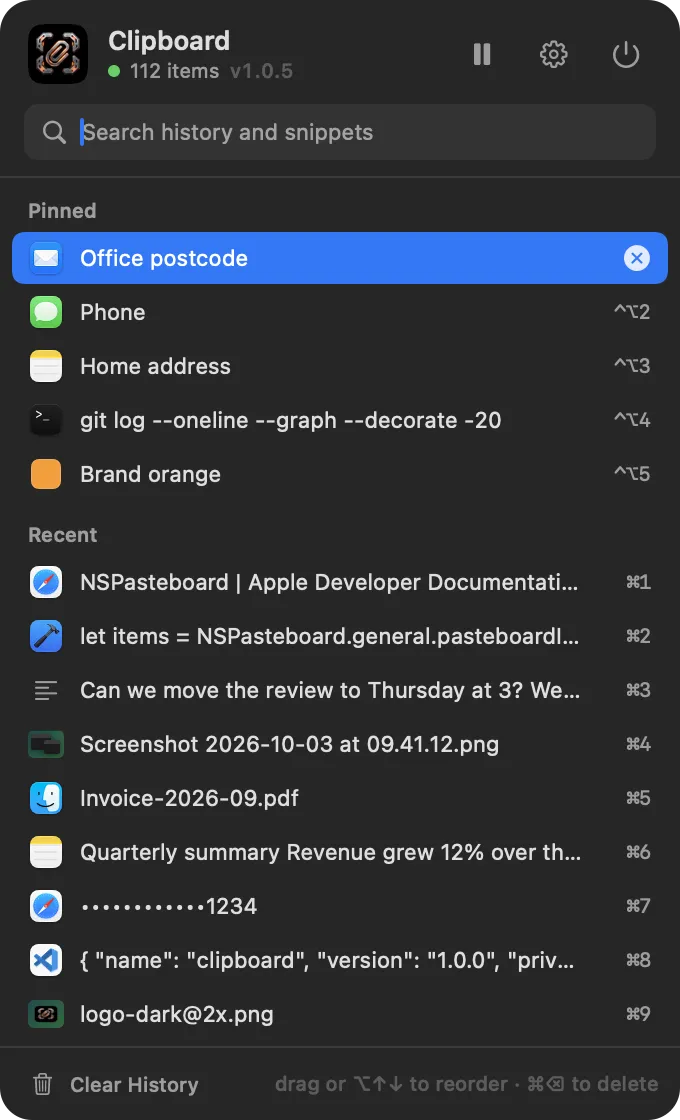
Opened from the icon, the menu reaches down to the bottom of the screen. It opens from the icon, from the Open the clipboard menu shortcut (⇧⌘V by default), from Open the Menu on the Dashboard, or from Try the Menu in Shortcuts. It opens over full-screen apps and on any Space. A click outside closes it.
The header shows the app name, a status light (green while capturing, orange when paused), the number of items or "Paused", and the version, with three buttons:
| Button | Action |
|---|---|
| Gear (Open Clipboard) | Opens the main window |
| Pause / Play | Pauses capture until you resume, or resumes it |
| Power (Quit Clipboard) | Quits the app |
Below it, the search field (Search history and snippets) has the focus as soon as the menu opens.
With the search empty, the menu lists:
- Pinboards: a folder with every pinned clip, and in it a folder for each pinboard, nested as they are in the Pinboards tab, each with how many clips it holds (its own and those of the pinboards inside it). Every folder starts closed each time the menu opens; a click,
↩or→opens one and←closes it. In a pinboard, the clips with a⌃⌥number come first, in number order, each with its keys. Turn this folder off with Settings › Menu › Pinned clips first. - Recent: the latest copies that aren't pinned, 60 by default (Settings › Menu › Items in the menu). The first nine are numbered
⌘1to⌘9, and the first is highlighted when the menu opens.
While you type, the menu lists Snippets whose keyword, name or text match, then History results (up to 40 clips, the first nine numbered ⌘1 to ⌘9). Snippets show their keyword at the right.
Each row shows the app the clip came from (or a color swatch, an image thumbnail, or the kind's icon) and one line of the clip. Hovering shows a tooltip with up to 400 characters, the app and when it was copied. The highlighted row shows a × button that deletes it.
Choosing a row (click or ↩) closes the menu and puts the clip back on the clipboard; with Paste right away on, it is also pasted into the app in front. Hold ⌥ while choosing to paste the other way: as plain text, or with formatting if Paste as plain text is on. Drag a row up or down to reorder it within its section.
The context menu (Control-click or right-click) of a clip has Paste, Paste as Plain Text (or Paste with Formatting), Copy, Move to Top, Pin to Favorites or Unpin, Show in Clipboard and Delete. Pin to uses the first pinboard. A snippet's context menu has Paste and Delete.
| Keys | In the menu |
|---|---|
↩ or ⌤ | Paste the highlighted item |
⌥↩ | Paste it the other way (plain text or with formatting) |
⌘1 … ⌘9 | Paste item 1 to 9 |
⌥⌘1 … ⌥⌘9 | Paste item 1 to 9 the other way |
↑ ↓ | Move the highlight |
→ ← | Open or close the highlighted folder |
⌥↑ ⌥↓ | Move the highlighted clip up or down its section |
⌘⌫ | Delete the highlighted item |
| Typing | Search |
esc | Clear the search; if it's empty, close the menu |
The main window
The gear in the menu opens the main window: a metal bar with the tabs Dashboard, History, Pinboards, Snippets, Privacy, Shortcuts and Settings. The window opens with just the bar, every tab closed (unless it was opened on a page, as from About Clipboard or Report a Bug…). Clicking a tab slides its panel down; clicking the open tab again folds it away. The i button on the title plate, to the right of the name and version, opens About.
While the window is open, Clipboard appears in the Dock and in ⌘⇥; closed, it goes back to the menu bar only. The window reopens where you left it on the screen.
Search
The Search slot on the bar, left of the close button, opens a page that searches everything in Clipboard (⌘F opens it from anywhere in the window): every setting, the privacy options and rules, the excluded apps, each shortcut with its keys, History's filters, the pinboards and snippets by name and keyword, the Dashboard's sections, and the help pages. It never searches what you copied: History's own search and the clipboard menu are for that.
With nothing typed, the page lists everything, by tab. Typing narrows it to the best matches, with the words found lit in orange and where each one lives (Privacy › Retention). Clicking a result, or ↩, opens its tab and page and lights up the row for a moment; actions such as Try the Menu or Check for Updates run right away. ↑ and ↓ move through the results; esc clears the field, then closes the page.
| Keys | In the window |
|---|---|
⌘, | Open Settings |
⌘W | Close the window (Clipboard keeps running in the menu bar) |
⌘Q | Quit Clipboard |
⌃⌘S | Show or hide the sidebar (History, Pinboards, Snippets, Privacy) |
⌘F | Search everything in Clipboard |
The menus at the top of the screen are the app menu - About Clipboard, Documentation, Check for Updates…, Stack Windows (see With the other Mac apps), Report a Bug… and Quit Clipboard (⌘Q) - and Help, with Clipboard Documentation, Changelog and Report a Bug….
What gets kept
Clipboard checks the clipboard four times a second. A new copy is left out when:
- capture is paused;
- it comes from an excluded app;
- the app that copied it marks it as concealed or temporary (both skipped by default);
- a password field has the keyboard (needs Accessibility);
- a content rule set to Skip matches it;
- it's an image larger than the Largest image limit (10 MB by default), or text larger than 50 MB.
Each clip is sorted into one of seven kinds:
| Kind | What it is |
|---|---|
| Text | Plain text |
| Rich Text | Text with real formatting: links, bold or italics, lists, tables, more than one font |
| Links | A single http, https or ftp address and nothing else; the page title is kept when the app provides it |
| Code | Text copied in a code editor or terminal, valid JSON, a shell command, or text that reads as code |
| Images | PNG, JPEG, HEIC, GIF, WebP or TIFF (kept as PNG); screenshots are named "Screenshot … at …" |
| Files | Files and folders copied in Finder or another app, kept as their paths |
| Colors | A color from a color picker, #RGB / #RRGGBB / #RRGGBBAA, rgb(…) or rgba(…), or a bare six-digit hex from a design app |
Copying the same thing again moves it to the top instead of keeping it twice; the new copy keeps the earlier one's name and paste count. Pinned clips stay where they are. Text longer than 100,000 characters is shortened in the lists and kept whole on disk, so it pastes in full.
Dashboard
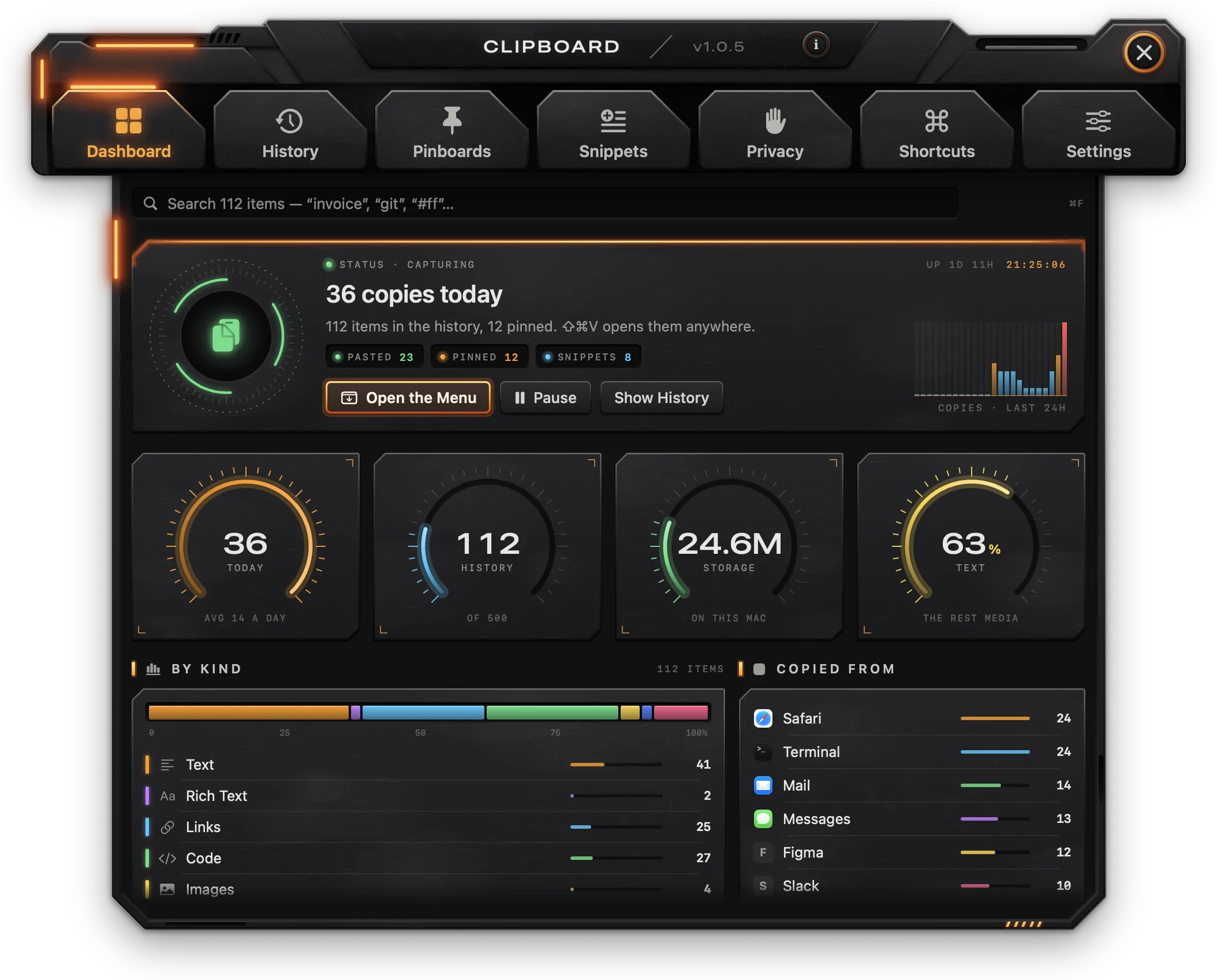
An overview of the history and the capture's state.
Search
The field at the top (Search N items) searches the whole history. Results appear below it (up to 40), with the count at the right. Clicking a result opens it in History. (To find a setting or a page instead, use Search on the bar.)
Status
- Status · capturing or Status · capture paused, the time and how long the Mac has been up.
- The number of copies today, the number of items in the history and how many are pinned.
- Readouts: Pasted (clips pasted today), Pinned, Snippets.
- Open the Menu opens the clipboard menu where Settings › Menu › Open the menu at says.
- Pause / Resume pauses capture until you resume, or resumes it.
- Show History opens the History tab.
- Copies · last 24h: copies per hour over the last 24 hours.
Gauges
| Gauge | Shows |
|---|---|
| Today | Copies today, against the daily average of the last seven days |
| History | Items in the history, against the Remember limit |
| Storage | Space the history takes on this Mac |
| Text | Share of text, rich text and code; the rest is media |
By Kind and Copied From
By Kind shows how many clips of each kind there are. Copied From shows the six apps copied from most. Clicking a row opens History filtered to that kind or app.
Quick Actions
| Tile | Action |
|---|---|
| Pause 15 Minutes | Pauses capture for 15 minutes |
| Clear History… | Removes every clip that isn't pinned, after you type DELETE |
| New Snippet | Creates a snippet in the General folder and opens it in Snippets |
| Excluded Apps | Opens Privacy › Excluded Apps |
Under Pinboards, the first four pinboards show how many clips each has; clicking one opens it.
Latest Copies and Activity
Latest Copies lists the six most recent clips; clicking one opens it in History, and Show All opens History. Activity shows copies per day over the last 14 days and the busiest day.
History
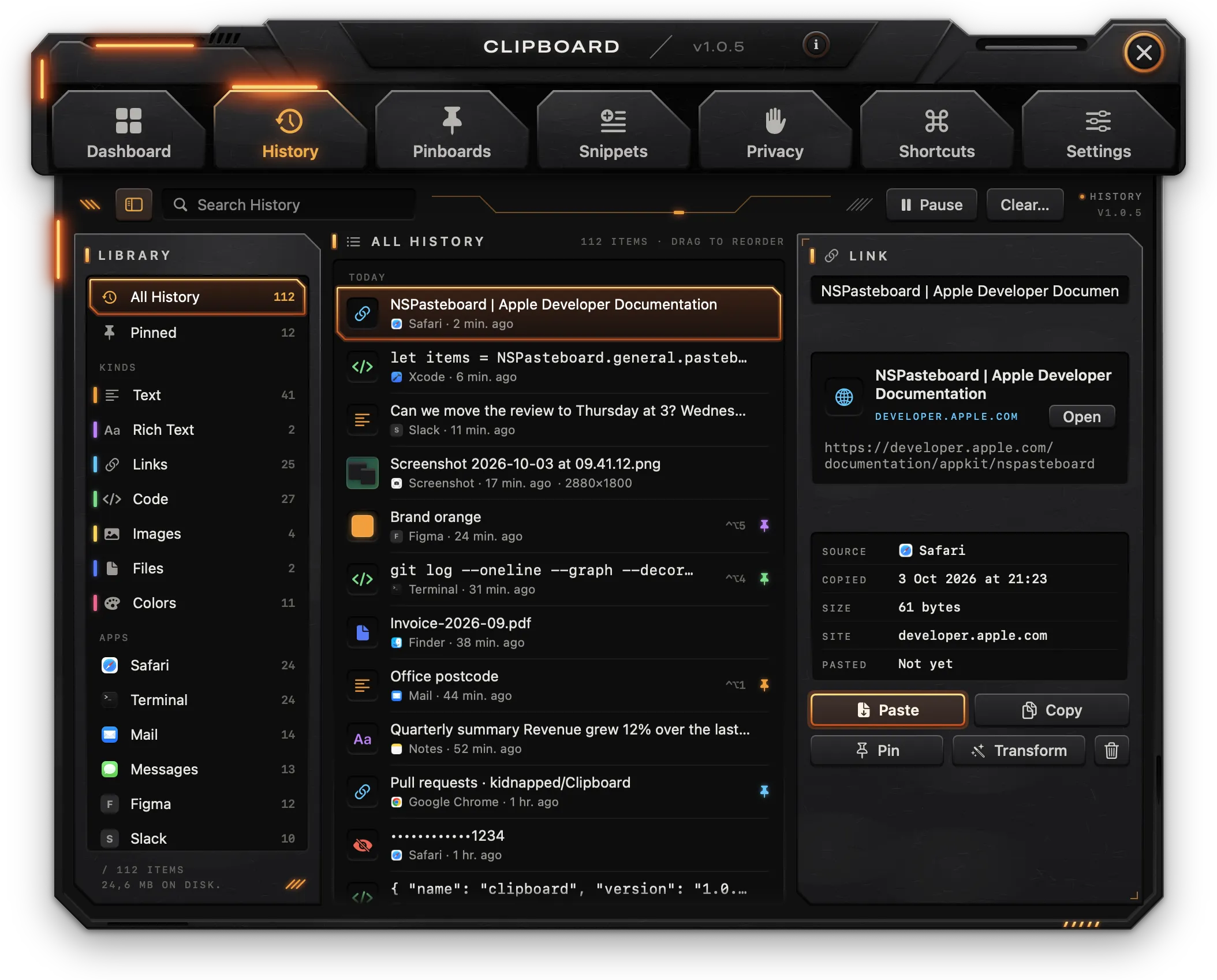
Every clip, newest first, with the one you pick shown in full at the right.
Toolbar
- The sidebar button (
⌃⌘S) shows or hides the sidebar. - Search History filters the list. Every word typed must appear in the clip's text, name, app or kind; case and accents are ignored.
- Sort by Date appears after you reorder clips by hand, and puts them back newest first. The order you dragged is lost.
- Pause / Resume pauses capture until you resume, or resumes it.
- Clear… removes every clip that isn't pinned, after you type
DELETE.
Library sidebar
- All History and Pinned.
- Kinds: Text, Rich Text, Links, Code, Images, Files, Colors.
- Apps: the ten apps copied from most.
Each row shows its count. The footer shows the number of items and their size on disk.
The list
Clips are grouped by day: Today, Yesterday, then dates. Each row shows the clip's kind (or its swatch or thumbnail), one line of it, the app and how long ago it was copied, and the pixel size of images. A pinned clip shows a pin in its pinboard's color and its ⌃⌥ number, if it has one. Hovering a row shows an × that deletes it.
Drag a row to reorder the list. After a drag, the list shows one group, Your order, until Sort by Date.
The context menu of a clip has Paste, Paste as Plain Text (or Paste with Formatting), Copy, Move to Top, Pin to › (each pinboard) or Unpin, and Delete. Images and colors have no plain-text option.
The inspector
The panel at the right shows the picked clip:
- its kind, and its pinboard as a badge if it's pinned;
- Name this clip: a name that replaces the first line in every list and is found by search;
- a preview: text and code in full (up to 20,000 characters), a link with its page title, site and an Open button, the image, a color with its HEX, RGB, HSB and SWIFT values, or files with their icons, a button to show each in Finder, and "No longer there" for files that were moved or deleted;
- Source, Copied, Size, a detail for the kind (Text: words and lines; Site; Pixels; Items; Format) and Pasted (how many times).
A clip caught by a masking rule shows only its last four characters and "Matched a privacy rule · masked"; Reveal shows it.
| Button | Action |
|---|---|
| Paste | Puts the clip on the clipboard and, with Paste right away on, pastes it into the app that was in front before Clipboard |
| Copy | Puts the clip on the clipboard, with its formatting; doesn't count as a paste |
| Pin | Opens the pin popover |
| Transform | Opens the transform popover |
| Trash | Deletes the clip |
Paste follows Settings › Pasting › Paste as plain text. With Move pasted items to the top on (the default), Paste and Copy both move the clip to the top.
Pinning
The Pin popover lists the pinboards; picking one pins the clip there. Once pinned, Paste from anywhere with ⌃⌥ and sets a number from 1 to 9 (or - for none). Each number belongs to one clip at a time: giving it to another clip takes it from the first. Unpin sends the clip back to the history and removes its number.
Transforms
Transform makes a new clip from the picked one's text, at the top of the history; the original stays. Each option shows a preview of its result. If a transform can't be applied (for example, Base64 Decode on text that isn't Base64), the inspector says "… doesn't work on this text."
| Transform | Result |
|---|---|
| Plain Text | The text without formatting (rich text only) |
| UPPERCASE | All capitals |
| lowercase | All lowercase |
| Title Case | Each word capitalized |
| Trim Whitespace | Spaces removed from the start and end of every line and of the text |
| Join Lines | All lines on one line, separated by spaces; empty lines dropped |
| Sort Lines | Lines in alphabetical order |
| Remove Duplicate Lines | Repeated lines removed, keeping the first |
| URL Encode | Percent-encoded for a URL |
| URL Decode | Percent-encoding decoded |
| Base64 Encode | The text as Base64 |
| Base64 Decode | Base64 decoded to text |
| Format JSON | JSON indented, with keys sorted |
| Remove Tracking from Links | A link without utm_…, fbclid, gclid, mc_…, igshid, ref_src and si parameters |
Which transforms are offered depends on the kind:
- Text and Code: all except Plain Text and Remove Tracking from Links.
- Rich Text: all except Remove Tracking from Links.
- Links: Remove Tracking from Links, URL Decode, URL Encode, lowercase.
- Images, Files and Colors: none.
Pinboards
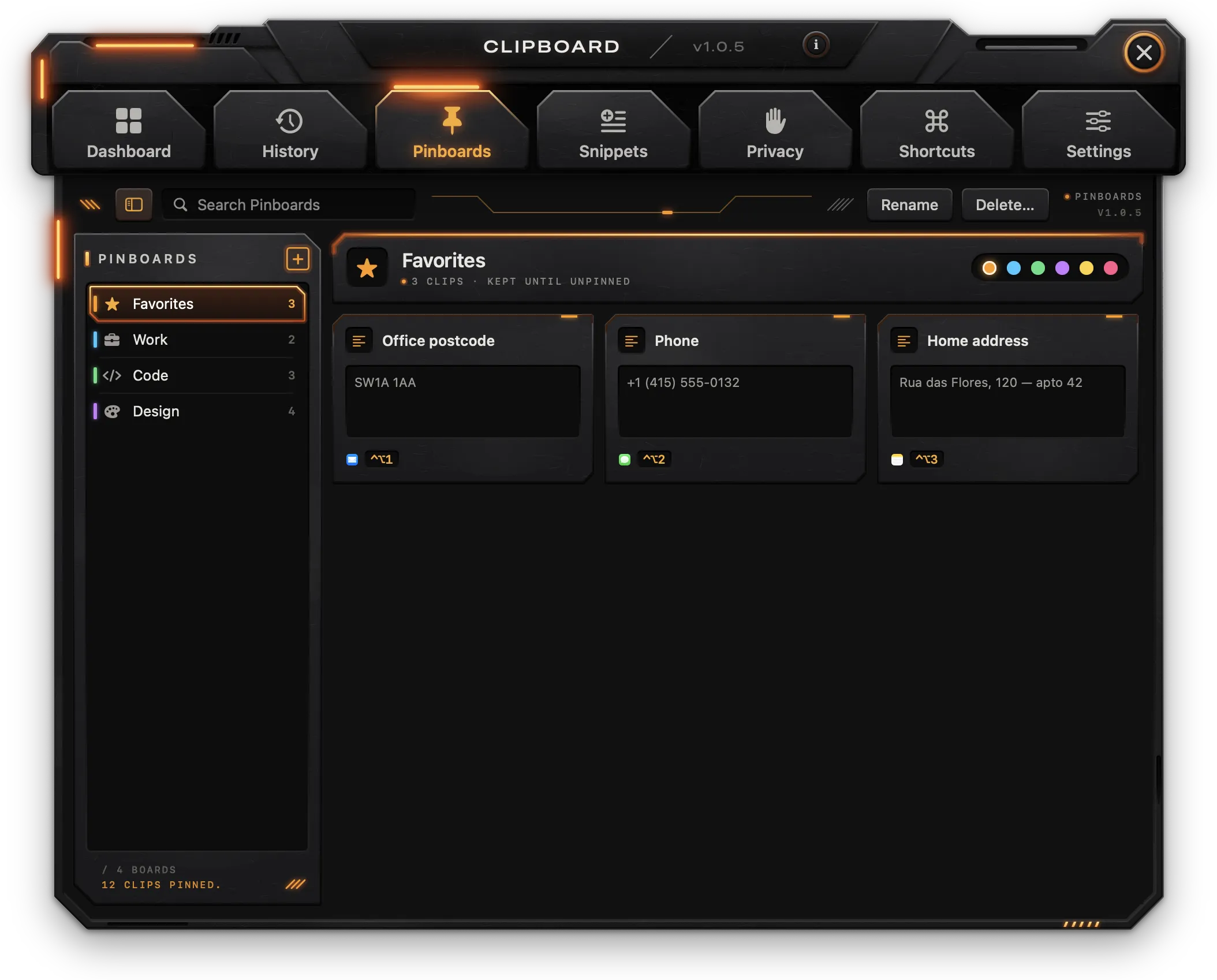
Pinboards keep clips for good. Pinned clips don't count toward the history's limits and are never removed by age or by number.
Boards
- The + button in the sidebar creates a board called "New Pinboard" and opens its name for editing.
- Rename edits the picked board's name;
↩saves it. - Delete… deletes the picked board after a confirmation. Its clips go back to the history and lose their
⌃⌥numbers; the boards inside it move up a level. - The six dots at the right of the header set the board's color.
- Search Pinboards filters the picked board's clips.
The sidebar lists the boards as a tree: a board can sit inside another, shown indented under it, and its count includes the clips of the boards inside it. To put a board inside another, drag it onto that board in the sidebar; the board lights up while it's over it. A board never goes inside itself or one of its own. The context menu of a board (Control-click or right-click) has New Pinboard Inside, Move Into (every board it can go in, nested), Move to Top Level, Rename and Delete….
The header shows the board's name and "N clips · kept until unpinned". Under it, a board that sits inside another has a button up to that board, and a board with others inside it lists them, each a click away.
Cards
Each pinned clip is a card with its line, a preview (text, a color swatch with its hex, or the image) and, at the bottom, the source app and either its ⌃⌥ number, how many times it was pasted, or its kind. Hovering a card shows three buttons:
| Button | Action |
|---|---|
| Paste | Puts the clip on the clipboard (and pastes it, with Paste right away on) |
| Show in History | Opens the clip in History |
| Unpin | Sends it back to the history |
Double-clicking a card opens it in History.
To move a clip to another board, drag its card onto that board in the sidebar: the board lights up while the card is over it, and the clip moves there with its ⌃⌥ number. Dropping it on its own board does nothing.
Clips are pinned from History (the Pin button or the context menu), from the clipboard menu (Pin to Favorites), or with the Pin the last copy shortcut.
Snippets
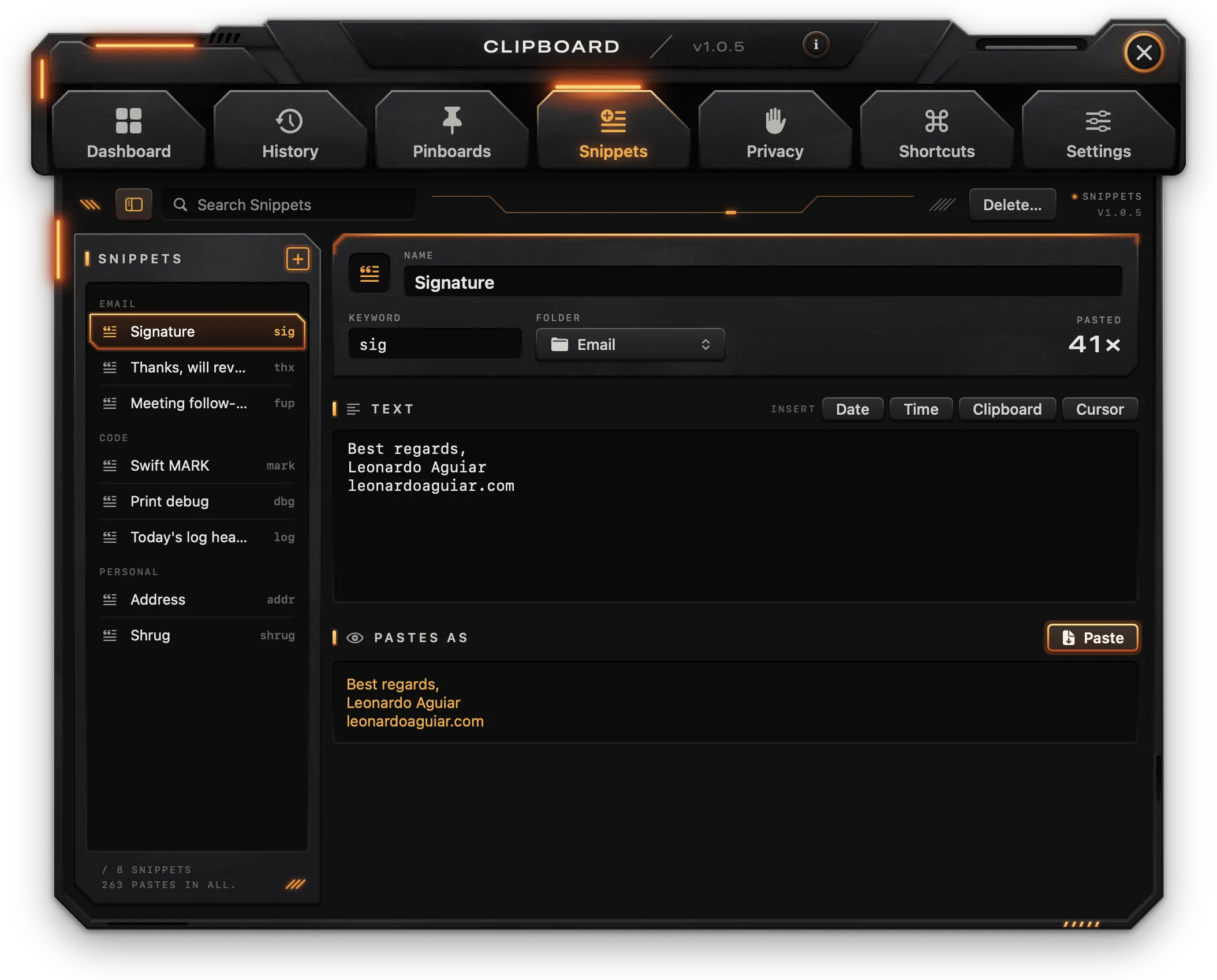
Snippets are text you write once and paste again: a signature, an address, a reply. They are found in the clipboard menu by typing their keyword, name or part of their text.
Sidebar and toolbar
- Snippets are grouped by folder, each with its keyword at the right.
- The + button creates a snippet called "New Snippet" in the picked snippet's folder (or General).
- Search Snippets filters by name, keyword, text or folder.
- Delete… deletes the picked snippet after a confirmation.
The footer shows the number of snippets and how many times they were pasted in all.
Editor
Changes are saved as you type.
- Name: shown in the sidebar and the menu.
- Keyword: a short word to find it in the menu's search, such as
sig. - Folder: pick an existing folder, or type a name in New folder and press
↩. - Pasted: how many times it was pasted.
- Text: the body. Insert buttons add placeholders at the end.
| Placeholder | Pasted as |
|---|---|
{date} | Today's date, in long form |
{time} | The current time |
{clipboard} | The text on the clipboard (or the latest clip) |
{cursor} | Nothing; the cursor is moved back to this point after pasting |
Pastes as shows the snippet with its placeholders filled in (using the latest clip for {clipboard}), and its Paste button pastes it. Pasted snippets don't go into the history.
Note:
{cursor}moves the cursor only when Clipboard pastes for you, with Settings › Pasting › Paste right away on and Accessibility allowed.
Privacy
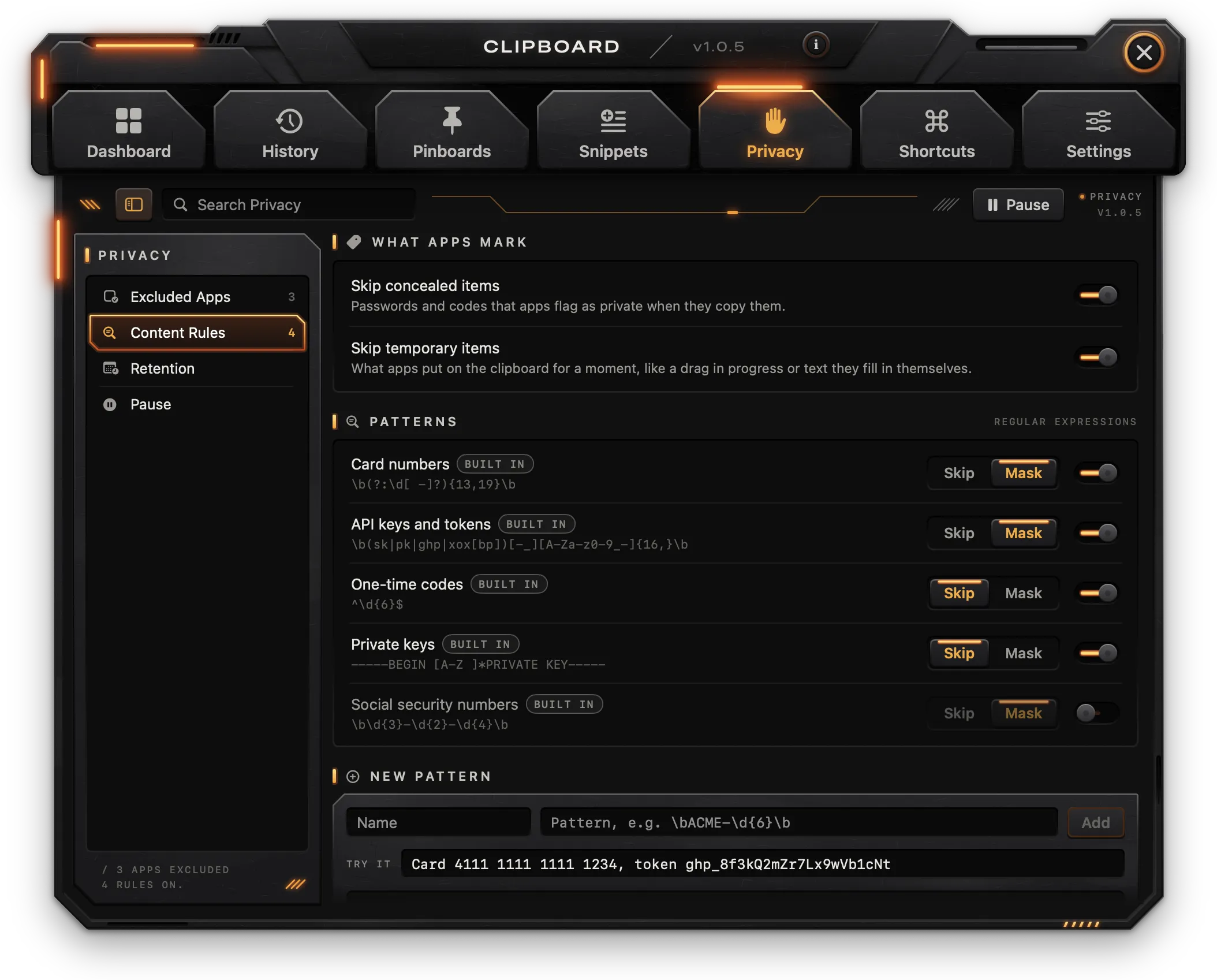
What Clipboard leaves out and how long it keeps the rest. The sidebar has four pages: Excluded Apps, Content Rules, Retention and Pause. The toolbar's Pause / Resume pauses capture until you resume, or resumes it, and Search Privacy filters excluded apps and rules.
Excluded Apps
Nothing copied in these apps is kept, and the Open the clipboard menu shortcut doesn't open the menu over them (it beeps instead).
- Add App… opens a file chooser in Applications; several apps can be picked at once.
- The - button next to an app stops excluding it.
- Suggested lists password apps found on the Mac that aren't excluded yet (Bitwarden, KeePassXC, Dashlane, Proton Pass, Authy), each with an Exclude button.
- Also Left Out shows two cases handled everywhere: passwords filled in by macOS and Safari (left out while Skip concealed items is on) and secure text fields.
Content Rules
What Apps Mark:
| Switch | Default | Effect |
|---|---|---|
| Skip concealed items | On | Leaves out passwords and codes that apps flag as private when they copy them |
| Skip temporary items | On | Leaves out what apps put on the clipboard for a moment, like a drag in progress or text they fill in themselves |
Patterns are regular expressions checked against copied text. Each rule has a Skip / Mask choice and an on/off switch:
- Skip: the copy is not kept.
- Mask: the copy is kept, but shown as dots and its last four characters everywhere in the app. It still pastes as it was copied.
If a skip rule and a mask rule both match, the copy is skipped.
| Built-in rule | Default |
|---|---|
| Card numbers | Mask, on |
| API keys and tokens | Mask, on |
| One-time codes (six digits alone on a line) | Skip, on |
| Private keys | Skip, on |
| Social security numbers | Mask, off |
Built-in rules can be turned off or switched between Skip and Mask, but not deleted.
New Pattern adds a rule of your own: type a Name and a Pattern, then Add (available once the pattern is a valid regular expression). New rules start as Mask; the - button deletes them. Try it takes sample text and highlights what the rules that are on, plus the pattern being typed, would catch.
Retention
Storage shows the space the history takes, split by kind, and the item count against the limit.
| Setting | Range | Default | Effect |
|---|---|---|---|
| Remember | 50 to 2,000 | 500 | How many clips the history keeps; the oldest go when there are more |
| For | Day, Week, Month, Year, Forever | Month | Clips older than this are removed |
| Largest image | 1 to 50 MB | 10 MB | Larger images are not kept |
| Clear the history when Clipboard quits | On / Off | Off | Removes every clip that isn't pinned when the app quits |
Pinned clips and snippets are never affected. The limits are applied at each copy, every hour and as soon as a setting changes, so lowering one removes clips right away.
Pause
While capture is paused, nothing you copy is kept; the history and the menu still work. The page shows whether capture is on and until when it's paused.
- Pause For: 15 Minutes, 1 Hour, 8 Hours or No limit. A timed pause ends by itself.
- Resume Now ends the pause.
A pause carries over if Clipboard is quit and opened again.
Shortcuts
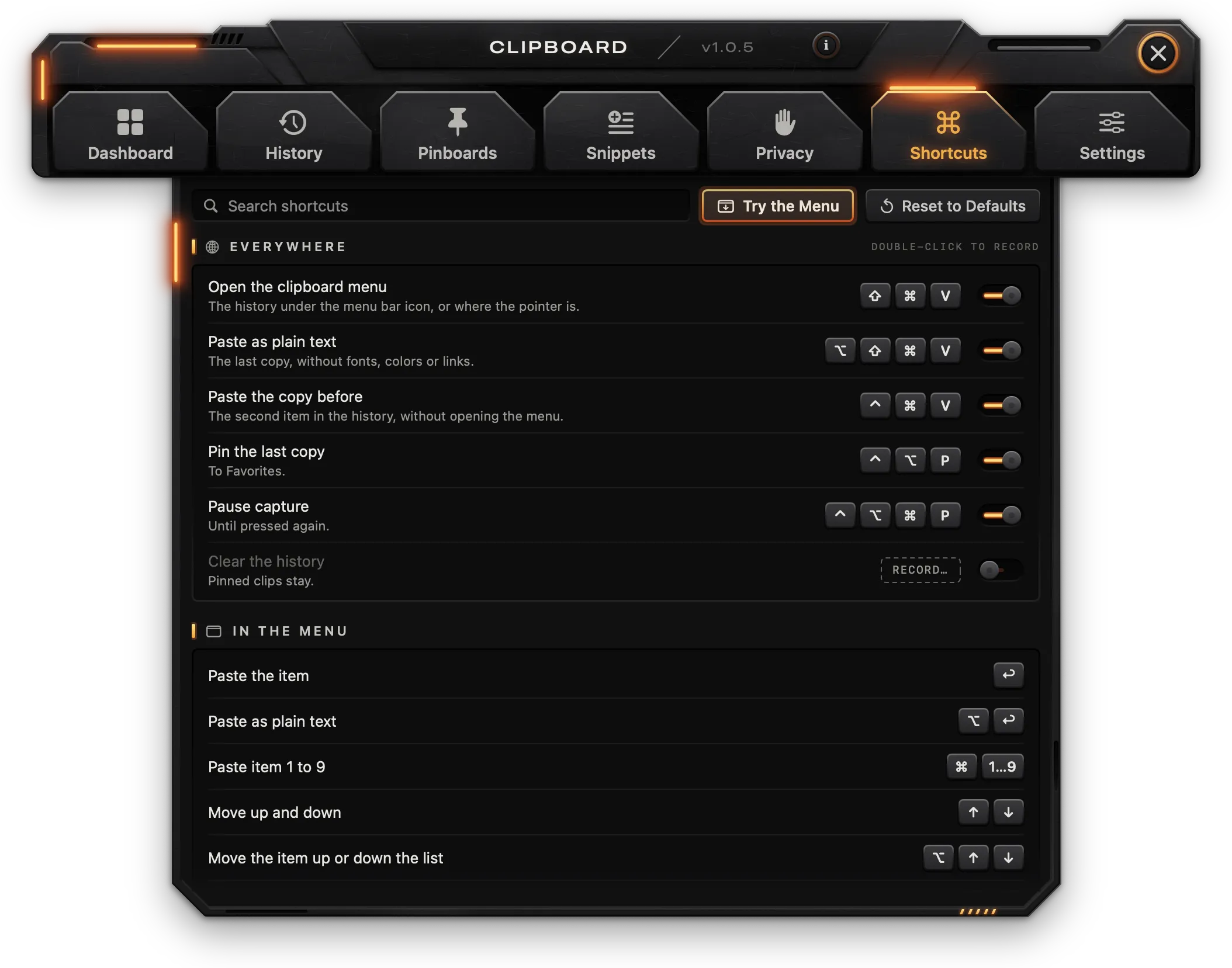
Everywhere
Shortcuts that work in any app. Each has an on/off switch.
| Shortcut | Default | Action |
|---|---|---|
| Open the clipboard menu | ⇧⌘V | Opens the menu (or closes it if open), where Settings › Menu › Open the menu at says |
| Paste as plain text | ⌥⇧⌘V | Pastes what's on the clipboard as plain text (or, if there's no text, the latest clip) |
| Paste the copy before | ⌃⌘V | Pastes the second item in the history, without opening the menu |
| Pin the last copy | ⌃⌥P | Pins the latest copy to the first pinboard (Favorites) |
| Pause capture | ⌃⌥⌘P | Pauses capture until pressed again |
| Clear the history | None, off | Removes every clip that isn't pinned, without a confirmation |
As everywhere else, "paste" means the clip goes on the clipboard, and is pasted into the app in front only with Paste right away on. A shortcut with nothing to act on beeps.
Recording a shortcut
- Double-click the keys (or RECORD…) of a shortcut.
- Press the new combination. It must include
⌃,⌥or⌘, unless it's a function key alone. - The shortcut turns on with the new keys.
escor Cancel Recording cancels.
While recording, the shortcuts stop working so the keys reach the recorder. A recording also ends when the window closes or another app comes forward. A combination is refused, with a message, when:
- it's
⌘with Q, W, C, V, X, Z, A, S, N, O, P, T, F, H, M, Space or Tab ("every app's own"); - another shortcut that's on already uses it;
- it's
⌃⌥1to⌃⌥9, which belong to the pinned clips.
If macOS won't give the keys to Clipboard because another app holds them, the row says "Another app has these keys. Record others."
Reset to Defaults restores every shortcut. Try the Menu opens the clipboard menu.
In the Menu
A reference of the menu's own keys (see The clipboard menu, under Getting started). They can't be changed.
Pinned Clips
The pinned clips that have a number, with their ⌃⌥ keys. Numbers are set in History › Pin.
Settings
General
- Launch at login: starts Clipboard in the menu bar when you log in. On by default; only available for the copy installed in Applications.
- Show icon in the menu bar: hides or shows the icon (see The menu bar icon, under Getting started).
- Check for updates automatically (with Check Now) and Install updates automatically: see Updates below.
- Send anonymous usage statistics: see Usage statistics and privacy below.
Menu
| Setting | Default | Effect |
|---|---|---|
| Items in the menu | 60 (5 to 200) | How many of the latest copies the menu lists; the rest are a search away |
| Open the menu at | Menu bar | Where the shortcut and the window's buttons open it: Menu bar, Pointer or Center; a click on the icon always opens it under the icon |
| Pinned clips first | On | The pinned clips with a number sit above the latest copies |
| Show app icons | On | Each item shows the icon of the app it was copied from |
Pasting
| Setting | Default | Effect |
|---|---|---|
| Paste right away | Off | Choosing an item also pastes it into the app in front (needs Accessibility); off, it's only put on the clipboard |
| Paste as plain text | Off | Pastes without fonts, colors and links; ⌥ while choosing does the opposite |
| Move pasted items to the top | On | What you paste or copy back becomes the latest item again |
| Play a sound when copying | Off | A soft click each time something is kept |
Files paste as files, or as their paths in plain text. Images and colors always paste as they were copied.
Permissions
Accessibility shows Granted or Not granted. Allow… asks macOS for the permission and opens Privacy & Security › Accessibility in System Settings. The status updates by itself once it's allowed.
Data
- Your history: the number of items, pinned clips and snippets and their size. Show in Finder opens the data folder; Show Privacy… opens the Privacy tab.
- Start over: Clear History… removes every clip that isn't pinned. Erase All… also removes the pinboards and snippets; settings, privacy rules and shortcuts stay. Both ask you to type
DELETEfirst.
Troubleshooting
Choosing a clip doesn't paste it
By default, choosing a clip only puts it on the clipboard; press ⌘V to paste. To have Clipboard paste for you, turn on Settings › Pasting › Paste right away and allow Accessibility. If you see "Copied. Allow Accessibility to paste.", the permission is missing: use Settings › Permissions › Allow….
Accessibility is on but pasting still fails
The permission in System Settings can belong to an older build of the app. Remove Clipboard from System Settings › Privacy & Security › Accessibility (or run tccutil reset Accessibility com.clipboard.app in Terminal), then click Allow… in Settings › Permissions and turn it on again.
Something I copied isn't in the history
Check, in order:
- Capture is paused: the menu bar icon is dimmed and the menu says "Paused".
- The app is in Privacy › Excluded Apps.
- The app marked the copy as concealed or temporary (Privacy › Content Rules › What Apps Mark).
- A password field had the keyboard.
- A skip rule matched. One-time codes skips any text with a line of exactly six digits; Private keys skips private keys.
- The image is larger than Largest image (Privacy › Retention).
- Clipboard wasn't running when you copied.
A clip shows as dots
A mask rule matched it, usually Card numbers (any run of 13 to 19 digits) or API keys and tokens. Click Reveal in the History inspector to see it; it still pastes as it was copied. To stop masking, turn the rule off in Privacy › Content Rules.
Clips disappeared
Clips that aren't pinned are removed when they are older than For (a month by default) or when there are more than Remember (500). Lowering either removes clips at once, and so does deleting a pinboard whose clips are older than the limit. Check Clear the history when Clipboard quits too. Pin clips to keep them for good.
The menu shortcut does nothing
- A beep means the app in front is excluded in Privacy › Excluded Apps.
- If the row in Shortcuts says "Another app has these keys. Record others.", another app holds the combination; record a different one.
- Check that the shortcut's switch is on in Shortcuts.
The menu bar icon is gone
Settings › General › Show icon in the menu bar is off. Open Clipboard from Spotlight or the Applications folder to show the window, and turn it back on.
The history is empty after an update or a crash
If library.json can't be read, Clipboard sets it aside as library-unreadable-<number>.json in ~/Library/Application Support/Clipboard instead of overwriting it, and starts a new history.
A file clip says "No longer there"
The file was moved or deleted after it was copied. The clip keeps only its path.
With the other Mac apps
Workspace, Manager, Clipboard and Network work as one when more than one is installed.
- Stacked windows: with more than one of their windows open, they sit together in one stack. The app menu › Stack Windows picks how, for every app at once:
- Compact (the default): the app in use shows its whole bar at the bottom of the stack with its page under it, and the others shrink to strips above it, each with its icon, name, tabs and close button. A tab on a strip opens that page and brings that app into use.
- Full Bars: every bar whole, one under the other; the app with a page open goes last, its page under it.
- Accordion: every bar whole, in the order they opened; a page opens under its own bar and pushes the bars below it down.
- Separate Windows: each window on its own, where you put it.
- In every stacked mode one page is open at a time: opening a tab in one app folds the other's page. Dragging any bar or strip moves the whole stack; closing a window closes the gap, and the last one left takes the top of the stack.
- One search: Search also finds what the other installed apps have (their pages, settings and actions), listed under In and the app's name; picking one opens it in its app, launching it if it isn't running. What you made or copied (pinboards, snippets, layouts, sessions, the apps you copied from) stays out. Each app keeps the list of what can be found in it in
~/Library/Application Support/leonardoaguiar.com/search/, on this Mac only. - About shows the other apps, with Open for those installed and Get It for the others, which opens their page on leonardoaguiar.com.
Updates
Clipboard checks leonardoaguiar.com for a new version once a day. This is on from the start; turn it off in Settings › Check for updates automatically.
- The small square button with two arrows on the bar, right of the i, checks for updates when clicked. While a new version is waiting, it lights orange with a lamp at its corner, and its tooltip names the version.
- Check for Updates… in the app menu does the same.
- Install updates automatically (off until you turn it on) downloads updates in the background and installs them when Clipboard quits, or right away from the notice it shows.
- Every update is signed by the developer and refused if the signature doesn't match.
Help and bug reports
The Help menu and the Help plate on About have:
- Clipboard Documentation (also Documentation in the app menu): this page.
- Changelog: every version and what changed in it, read from leonardoaguiar.com, so it includes versions newer than the one installed. The installed version is marked, and a newer one comes with Update Now. The same list is at leonardoaguiar.com/clipboard/changelog.
- Report a Bug… (also in the app menu, under Check for Updates…): a form that sends a report to the developer.
Report a Bug
| Field | What goes in it |
|---|---|
| Kind | Bug, Crash or Suggestion. |
| How often | Every time, Sometimes or Once (not for suggestions). |
| Title | A few words about the problem, up to 140 characters. |
| What happened (The suggestion) | What you were doing and what you saw: a message, a wrong result, the app quitting. |
| Steps to reproduce · optional | How to make it happen again, step by step. |
| What you expected · optional | What should have happened instead. |
| Email · optional | To hear back by email; never published or shared. An address that doesn't look right is pointed out before sending. |
| Attachments | Up to 5 files of up to 10 MB each: drop them on the field or click Add Files…. Screenshots, screen recordings and logs help the most. |
| Include system information | On by default: the app's version and build, the macOS version, the Mac's model, processor and memory, and the language. Show displays exactly what goes. |
Everything written goes to the developer as one text, with the kind and how often on top. Until the title and what happened are filled in, the line next to the button says what's missing; Clear empties the form. Send Report (⌘↩) sends it and shows its number. Sending takes a moment of the Mac's work first, which keeps the site from being flooded with automated reports.
Your Reports
The reports sent from this Mac are listed next to the form, with their status - received, confirmed, in progress, fixed (with the version that fixes it) or closed - and an orange lamp when there's a reply you haven't read. Click a report to read the conversation and add more details. Remove from This List takes it off this Mac's list; the report stays with the developer. The list is refreshed each time the page opens, or with the button next to its title.
Usage statistics and privacy
Clipboard sends anonymous usage statistics to leonardoaguiar.com once a day. They're on by default and help decide what to fix and improve. Settings › Send anonymous usage statistics turns them off, and whatever was waiting to be sent is discarded.
What goes: the app's version, the macOS version, the Mac's model identifier (such as Mac15,3), the processor type, the language, a few settings that are on or off (such as checking for updates on its own), how many times the app was opened, the minutes its window was open, and how many times each tab and function was used, counted per day. With it goes an identifier that is random, made by the app and used only for this.
What never goes: names, anything you copy, paste or type, or app names, files, and anything you type. The site records the country the statistics come from, not the IP address.
Besides the statistics, Clipboard connects to leonardoaguiar.com only to check for and download updates, to show the changelog, and to send a bug report when you write one and to check its replies.